Inviting users to your account
In this article
Venues using MyHallWizard often need multiple people to have access to the system. You can invite additional users and assign them different roles to control what they can do.
How to Invite a User
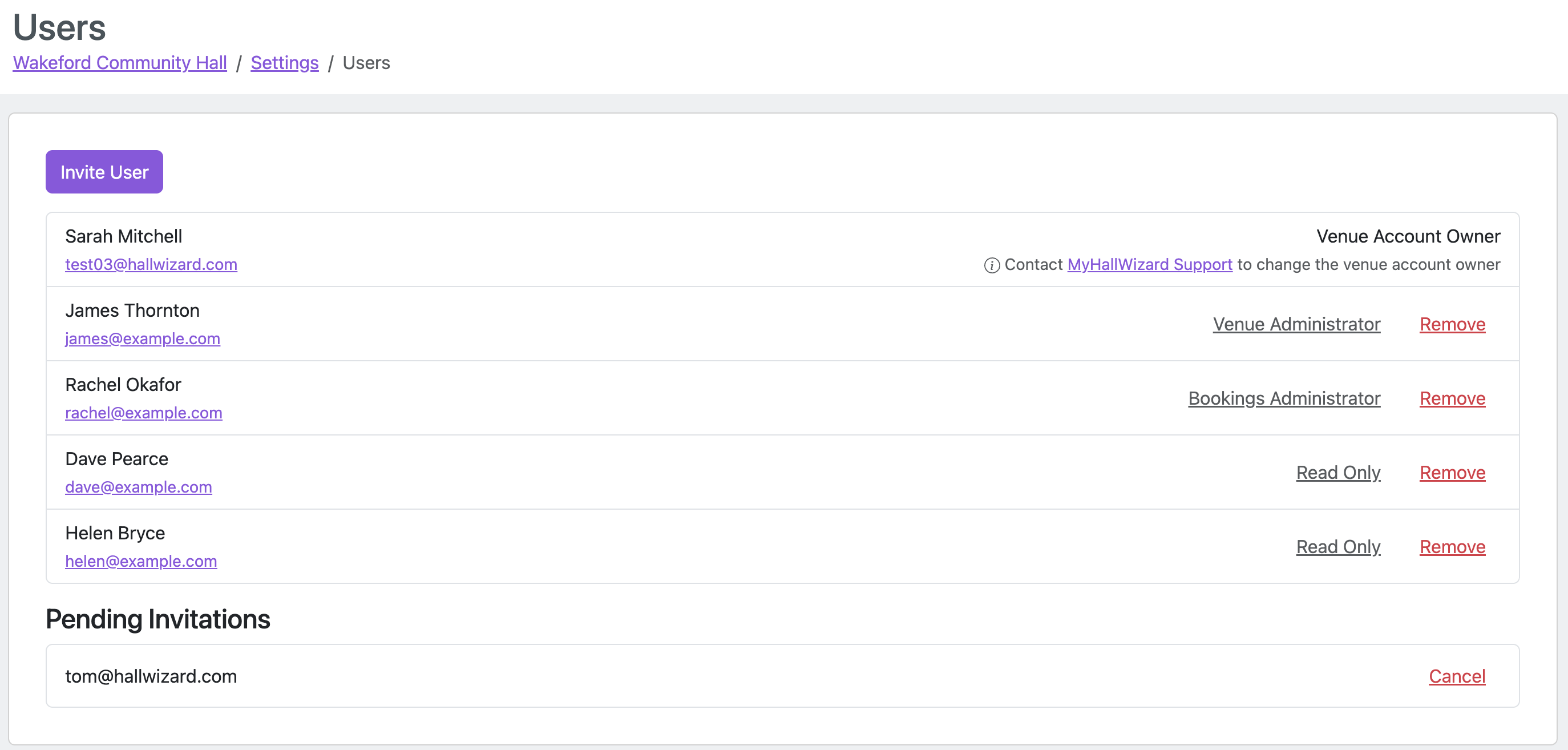
Click the Settings icon (gear/cog) in the navigation bar, then click Users.
Click the Invite User button.
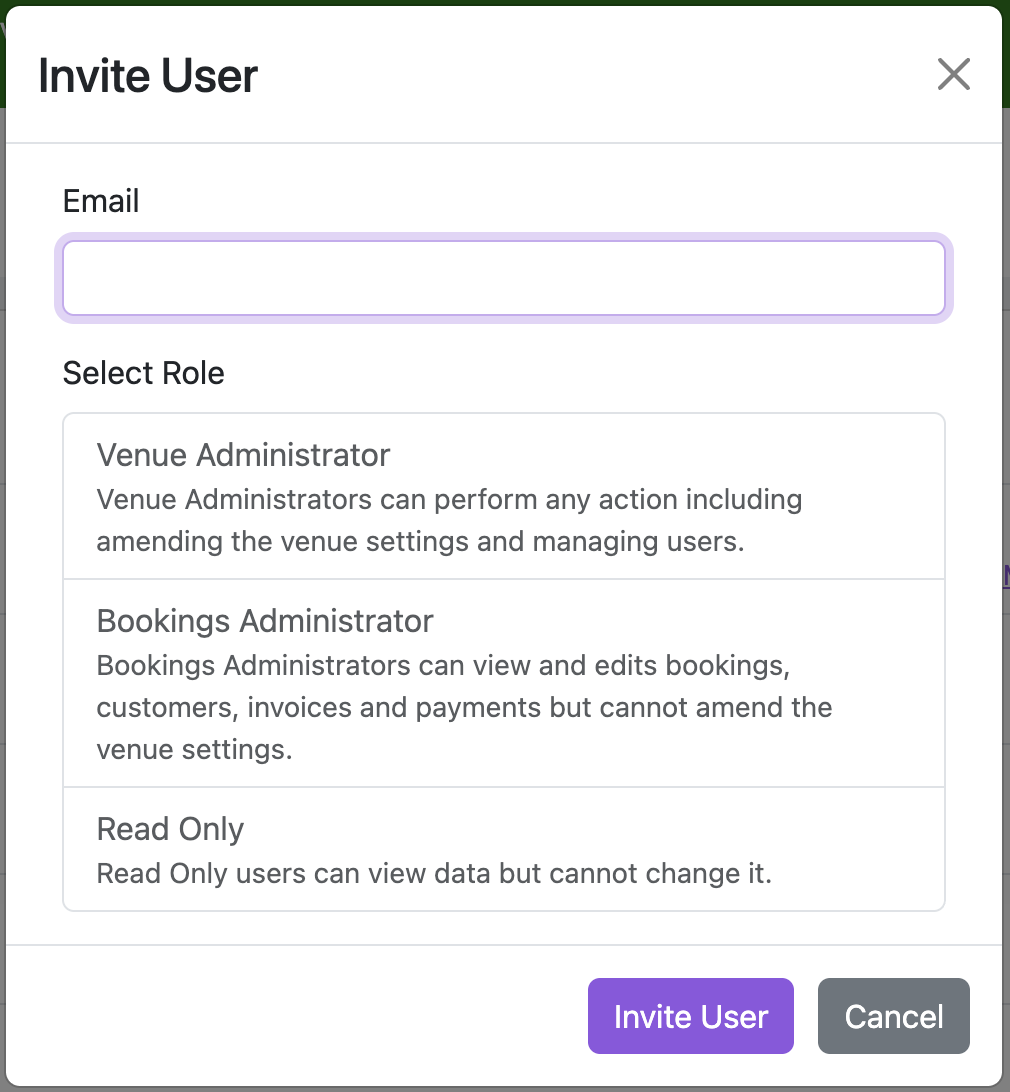
A dialog will open. Enter the person's email address.
Select the role you want them to have (see below). Each role is shown with a description to help you choose the right one.
Click Invite User to send the invitation.
User Roles
Role | What they can do |
|---|---|
Venue Administrator | Can perform any action, including amending venue settings and managing users. |
Bookings Administrator | Can view and edit bookings, customers, invoices and payments, but cannot amend venue settings. |
Read Only | Can view bookings, customers, invoices and payments, but cannot make any changes. Suitable for committee members or others who need visibility without modification. |
What Happens Next
The invited person will receive an email:
If they are not already a MyHallWizard user, the email contains a link to create their account. Once they sign up, they will be automatically added to your venue team. They only need to provide their personal details and agree to the terms and conditions.
If they are already a registered MyHallWizard user, the email contains a link to accept the invitation and join your venue team.
Pending Invitations
After sending an invitation, it will appear in a Pending Invitations section on the Users page. You can cancel a pending invitation at any time by clicking Cancel next to it.
Changing a User's Role
You can change the role of an existing team member at any time:
On the Users page, click the user's current role.
A dialog will open where you can select a new role.
Click Save to apply the change.
Removing a User
To remove a user from your venue team, click the Remove button next to their name on the Users page.
Requiring two-factor authentication for your venue
If you're a venue administrator, you can require every user at your venue to use two-factor authentication (2FA).
In the Security section of the Users setting page, switch on Require two-factor authentication for all users.
You'll be asked to confirm. If you haven't set up your own 2FA yet, you'll be taken to set it up straight away — the requirement applies to you as well.
From then on, every user at your venue must set up 2FA the next time they log in before they can continue. Each person can choose whichever method suits them. To lift the requirement, switch the same setting off again.
Please see Two-Factor Authentication to learn more about 2FA and how to set up and use it.