Create a new venue
In this article
Setting up a new venue in MyHallWizard involves four steps: entering your venue details, setting up rooms and prices, adding customers and bookings, and further configuration.
If you are adding a second venue to your account, click the Settings icon (gear/cog) in the navigation bar, then click Create New Venue.
Step 1: Enter Your Venue Details
Enter your venue's contact information. This will appear on invoices and outgoing customer emails:
Venue Name
Email address and Phone number
Address
Website (optional)
Calendar URL — a unique URL for your venue's public calendar. Choose something simple and recognisable, such as your venue name with hyphens (e.g.
dakeford-village-hall)Logo — upload your venue logo (used on invoices and other documents)
Step 2: Set Up Rooms and Prices
After creating your venue, you'll be taken to the rooms and pricing setup page.
Adding Rooms
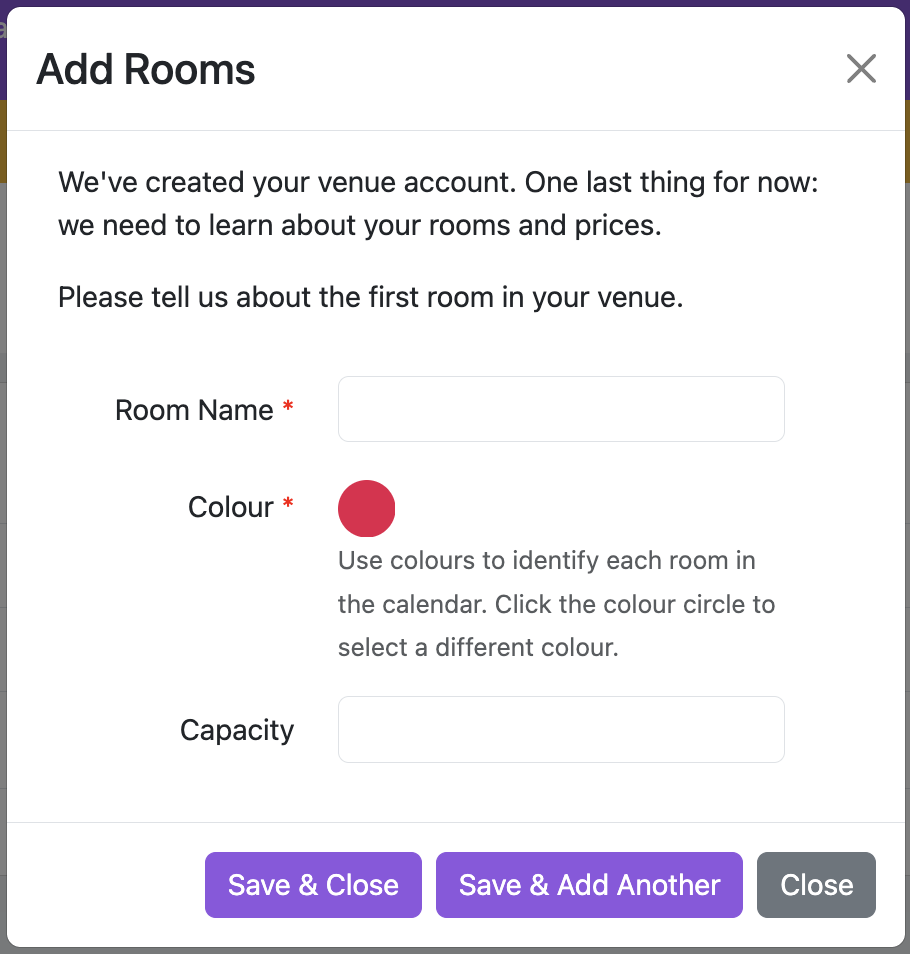
Click Add Rooms to open a dialog where you enter:
Name — the room name (e.g. "Main Hall", "Meeting Room")
Colour — a colour for the room on the calendar
Capacity — the maximum number of people
Click Save & Add Another to add more rooms, or Save & Close when you're done.
Setting Prices
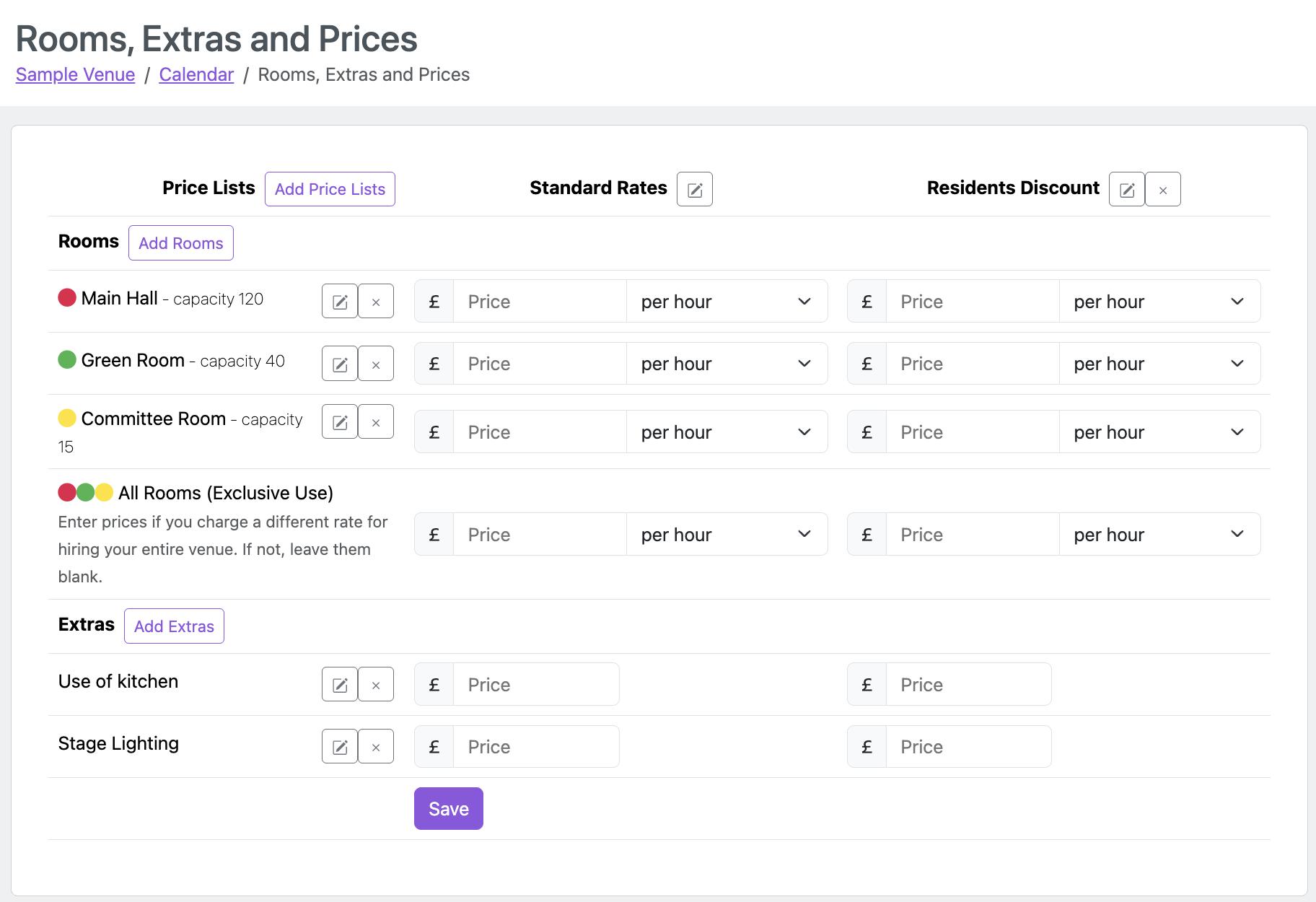
After adding your rooms, enter the prices in the table on the same page. For each room, you can set:
The price per hour or per session (a session is a fixed price regardless of booking duration)
Prices for any extras your venue offers (e.g. "Use of kitchen", "Projector")
You can also set up additional Price Lists on this page if you need to charge different prices for some customers. See Price Lists for more information.
Click Save when you're finished.
Step 3: Add Customers and Make Bookings
Adding Customers
Click Customers in the navigation bar, then click New Customer to add your first customer. You can also import customers from a spreadsheet — see Importing Customer Data.
Making Bookings
Click Bookings in the navigation bar to go to the calendar. Click New Booking or click on a date to create your first booking.
Step 4: Further Configuration
Once you have the basics set up, you can configure additional features from the Settings page (click the gear/cog icon in the navigation bar). Useful settings include:
Invoice and Payment Settings — set up your invoice template and payment methods. See Set up Invoices and Payments
Custom Fields — record information MyHallWizard doesn't ask for as standard — for example, a membership number, dietary requirements, how many chairs a group needs, which door code they were given, or if importing data from other systems and there isn't an equivalent field in MyHallWizard. See Custom Fields.
Calendar Settings — configure your calendar preferences, enable your public calendar, and allow booking enquiries from members of the public. See Calendar Settings
Emails — configure MyHallWizard to send emails from your own email address - see Sending Emails From Your Own Address or Domain. Customise the wording of emails that MyHallWizard sends to your customers. See Email Templates
Users — invite other people to help manage your venue. See Inviting Users to Your Account.
There are many other settings available to you. Visit Configuration to find out more.
Free Trial
New venues start with a free trial that gives you access to all features with up to 6 rooms. See What Happens at the End of My Free Trial for details on what happens next.