Extras
In this article
Extras are additional items or services that can be added to a booking alongside room hire. For example, you might use them to record that a customer requires use of the kitchen, a projector, tables and chairs, or any other chargeable or non-chargeable item.
When a booking includes extras, they are shown on the booking details, included in the price calculation, and listed on invoices.
You can optionally request a quantity with an extra, for example if you want to record the number of tables required for a booking, or restrict extras to specific rooms, such as when an extra relates to fixed items in a room, such as Stage Lighting in the Main Hall.
Setting Up Extras
Extras are managed in the Settings > Extras page. To create a new Extra, click New Extra.
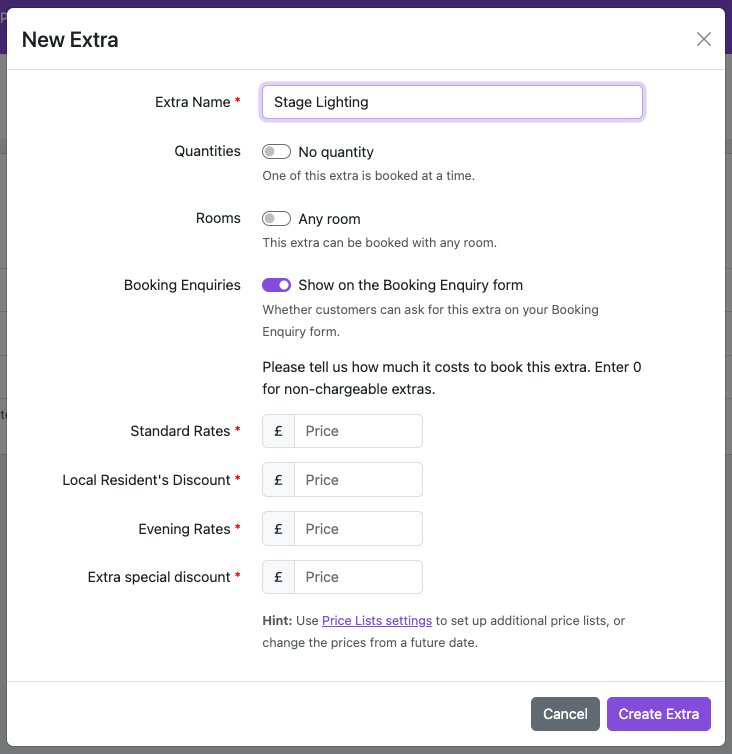
Fields are as follows:
Extra Name - the name of the extra
Quantities - use this switch to indicate that you want to record a quantity for this extra. If you select it, some additional fields will be displayed:
Maximum Quantity - leave blank if there is no maximum quantity required, or enter the maximum than can be booked. If this is filled in, then you will be asked to explain what the maximum applies to.
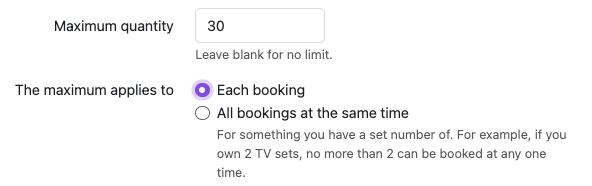
Choose Each booking if you can always select 30 of them in a booking.Choose All bookings at the same time where you have a set number of something. For example, if your hall owns 30 tables, then you can't have two bookings at the same time wanting 20 tables, so you would select this option. Then, if one booking has requested 20 tables, the other one can only book 10 of them.
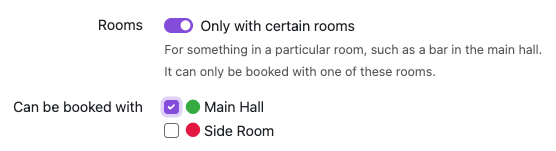
Rooms - use this switch to indicate if an extra can only be booked in specific rooms. For example, if your hall has Stage Lighting in the Main Hall, you should not be able to select the extra if a booking is only in the Side Room. Switch this on, then select the rooms for which the extra can be booked.
Booking Enquiries - use this switch to indicate if the extra is available to be selected by a customer on the booking enquiry form.
Various price lists - you will be asked to enter a price for the extra in each of your price lists. The price is for a single item, so if you request a quantity with the extra, the price is multiplied by the quantity when calculating the overall booking price.
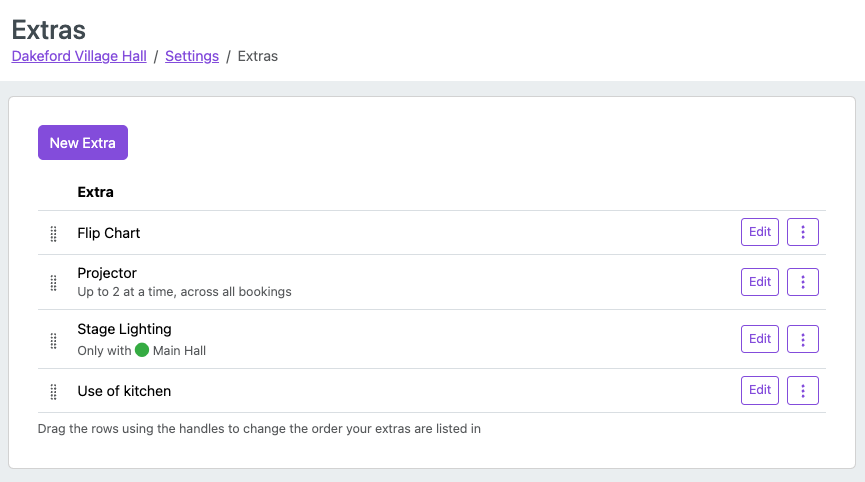
You can add as many extras as you need. To edit or delete an extra, use the Edit or Delete buttons next to each one.
Setting Prices for Extras
Extras have a fixed price per booking, configured in your price lists. After creating an extra, go to Settings > Price Lists and set the price for each extra in each price list.
If an extra should be free of charge (e.g. "Access to car park"), simply set its price to £0.
For extras where you collect a quantity, the price is multiplied by the quantity for the overall price calculation.
See Price Lists for more information on managing prices.
Using Extras on Bookings
When creating or editing a booking, select any extras the customer needs from the checkboxes in the booking form, and enter the quantity if required (it defaults to 1 initially). If an extra is not available because the associated room has not been selected, it will not have a check box, and a message will explain which rooms need to be booked.
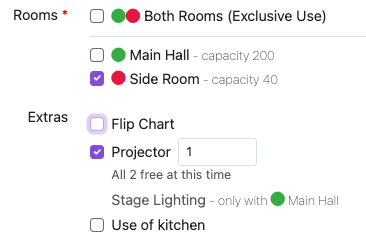
The price calculation will automatically include the extras.
Extras are also shown in the Extras Report (see Reports) so you can track usage across all bookings.
Changing the order the Extras are displayed on the booking form
You can change the order the extras are displayed on the booking form by going to Settings > Extras and dragging and dropping the extras up or down the table using the drag handles on the left of the table.