Managing Customers
In this article
Customers in MyHallWizard represent the people or organisations who book your venue. Each customer has contact details, invoicing preferences, and a default price list. This guide covers how to create, view and manage your customer records.
Viewing Your Customers
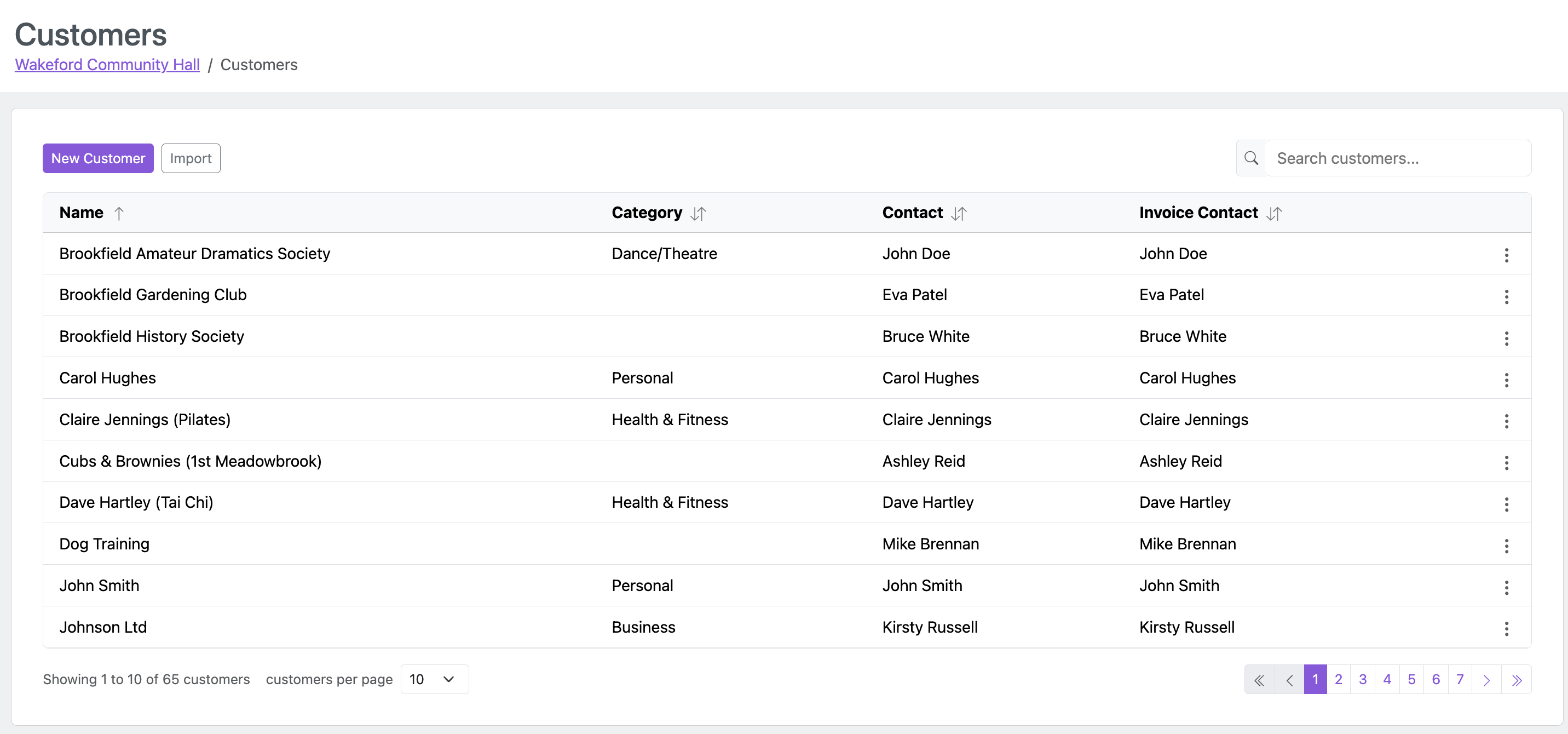
Click Customers in the navigation bar to see a list of all your customers. The table shows each customer's name, category, contact name, and invoice contact.
Click on any customer to view their full details.
You can also import customers in bulk from a spreadsheet — see Importing Customer Data.
Creating a Customer
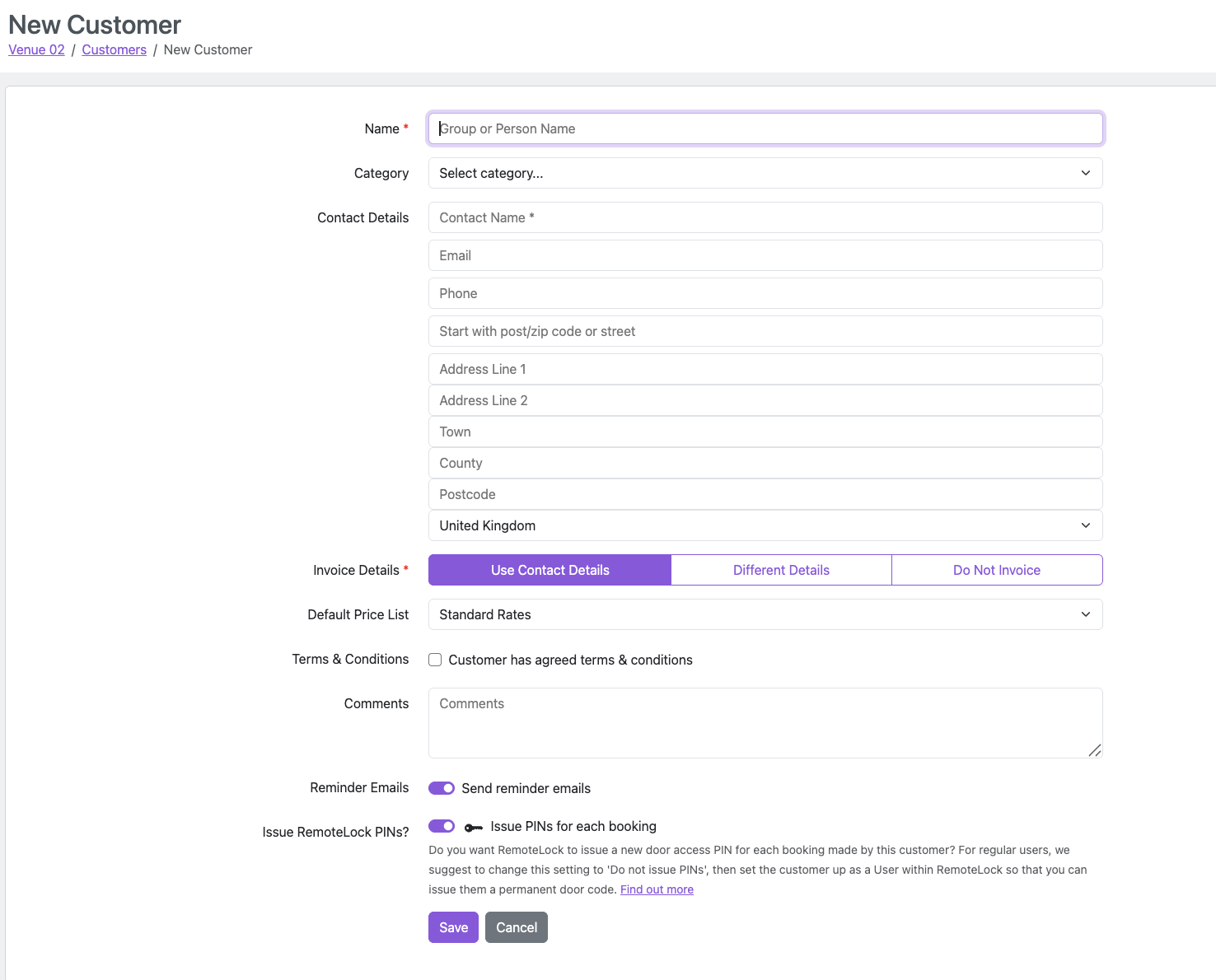
Click New Customer on the Customers page, or create a customer inline when making a booking.
Customer Form Fields
Core details:
Field | Required? | Description |
|---|---|---|
Name | Yes | The customer or organisation name (e.g. "Art Group", "John Smith"). Must be unique. |
Category | No | A customer category for classification and reporting. See Customer Categories below. |
Contact Name | Yes | The person responsible for bookings and invoices. For personal customers, this is automatically filled from the Name field. |
No | Contact email address. | |
Phone | No | Contact telephone number. |
Address | No | Full address (with address lookup to help fill in the fields). |
Invoice details:
Choose how this customer should be invoiced:
Use Contact Details — invoices are sent to the contact details above.
Different Details — opens additional fields for a separate invoicing contact (name, email, phone, address). Useful when the billing contact is different from the booking contact.
Do Not Invoice — this customer will never be invoiced. Bookings for this customer will automatically be set to "Do not invoice".
Other fields:
These are not core customer fields, but can be used for adding further information or telling MyHallWizard how to treat the customer. To keep the screen tidy for you, we sometimes hide these fields - if you can't see them, click > More at the bottom of the customer record to show them.
Field | Description |
|---|---|
Default Price List | The price list used to calculate prices for this customer's bookings. Defaults to Standard Rates. Hidden if "Do Not Invoice" is selected. |
Terms & Conditions | Checkbox to record that the customer has agreed to your terms. |
Comments | Internal notes about the customer — not visible to the customer. |
Reminder Emails | Whether to send Booking Reminder Emails to this customer. Only shown if Booking Reminder Emails are configured. See Booking Reminder Emails. |
Issue RemoteLock PINs? | Whether to generate door access PINs for this customer's bookings. Only shown if RemoteLock is set up. |
Custom fields | Any custom fields you have created are also displayed at the bottom of the customer record. |
Viewing a Customer
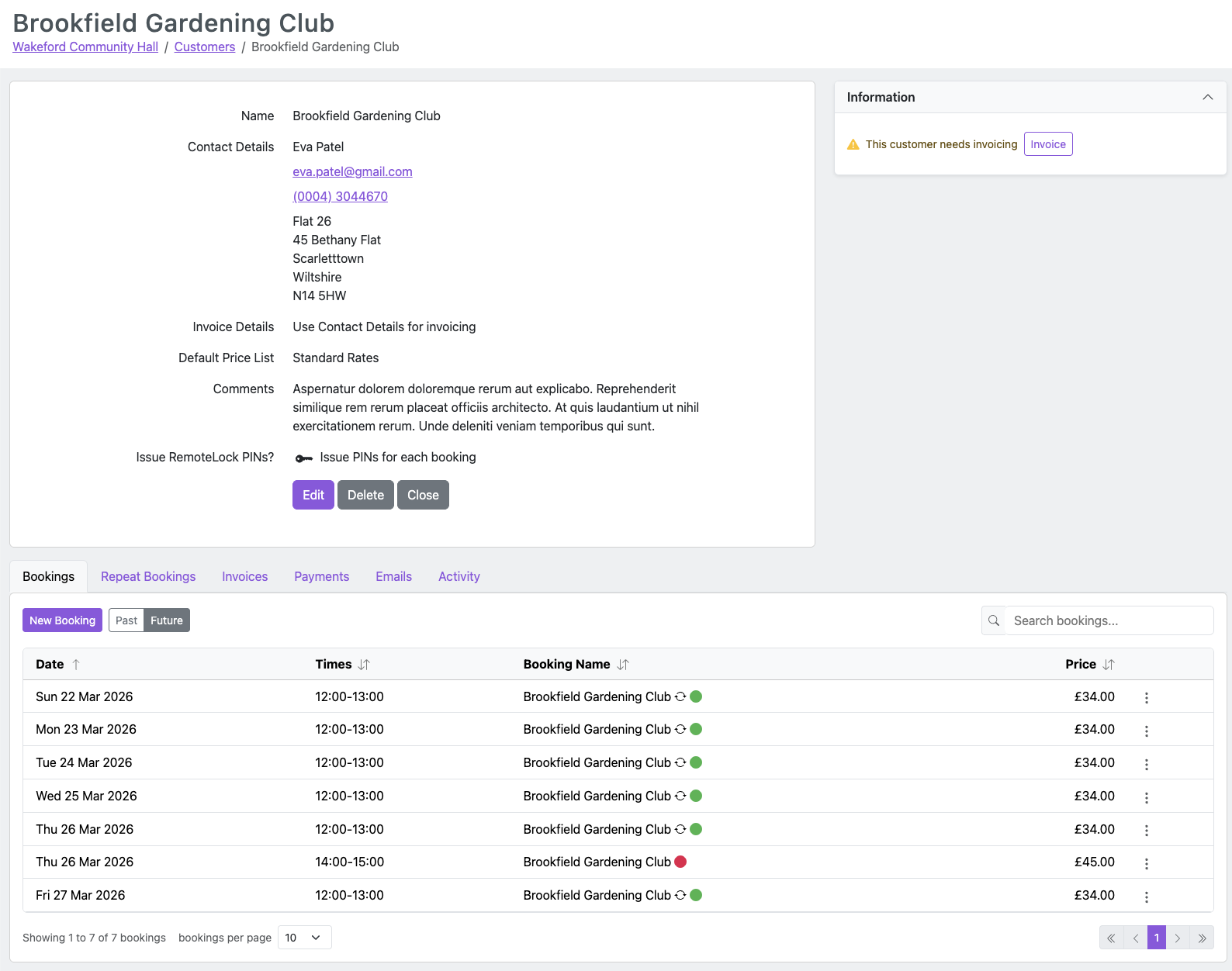
The customer detail page shows all the customer's information, plus:
Information panel in the sidebar — alerts for overdue payments, draft invoices, or bookings that need invoicing.
Tabs at the bottom:
Bookings — all bookings for this customer
Repeat Bookings — all repeat booking series for this customer
Invoices — all invoices for this customer
Payments — all payments recorded for this customer
Emails — all emails sent to this customer
Activity — audit history of all changes
Customer Categories
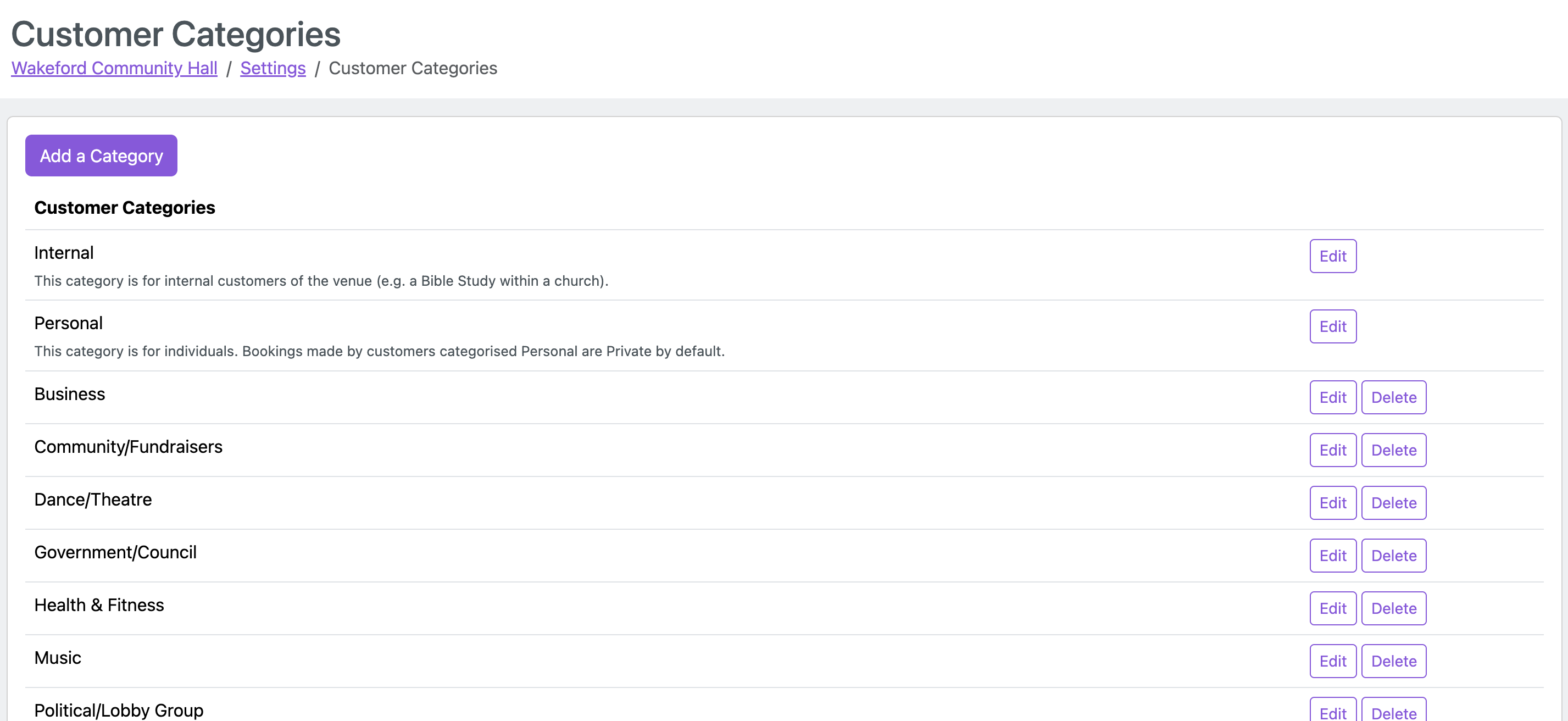
Categories help you classify your customers for reporting and can set default behaviour. To manage categories, click the Settings icon, then click Customer Categories.
There are two special category types:
Internal — for internal venue users (e.g. a Bible study group within a church). Customers in this category are automatically set to "Do Not Invoice", and their bookings default to "Do not invoice".
Personal — for individual people rather than organisations. Bookings for personal customers default to "Private" (hidden on the public calendar), and the Contact Name is automatically filled from the customer Name.
You can create as many categories as you need (e.g. "Community Group", "Commercial", "Charity"). Categories are used in the Customer Category Report and Customer Usage Report for analysis.
Editing a Customer
Click Edit on the customer detail page to open the form for editing.
Deleting a Customer
Click Delete on the customer detail page.
When you delete a customer, all their bookings are deleted from the calendar. However, their invoices and payments remain in the system.
Once you have deleted the customer, you will not be able to raise invoices for that customer or enter payments. You should therefore check that all bookings have been invoiced and all invoices have been paid before deleting them.
As the customer's bookings are deleted from the system, any reports such as the Room Usage Report or Customer Usage Report would no longer include these bookings in their statistics.