Public calendars
In this article
MyHallWizard allows you to display your booking calendar publicly so visitors can see scheduled events and availability. The calendar can be viewed directly through the application or embedded into your own website.
What Visitors See
When viewing your public calendar, visitors can see bookings but cannot modify them or create new ones.
Public bookings display their name. Clicking on a booking reveals its name, date, time, rooms, and details — which is useful for promoting events.
Private bookings show as "Private Booking" to protect the customer's privacy.
Customer information and administration notes are never shown. However, be careful about including personally identifiable information in the booking name or details fields of public bookings.
Enabling the Public Calendar
The public calendar is disabled by default. To enable it:
Click the Settings icon (gear/cog) in the navigation bar
Click Calendar Settings
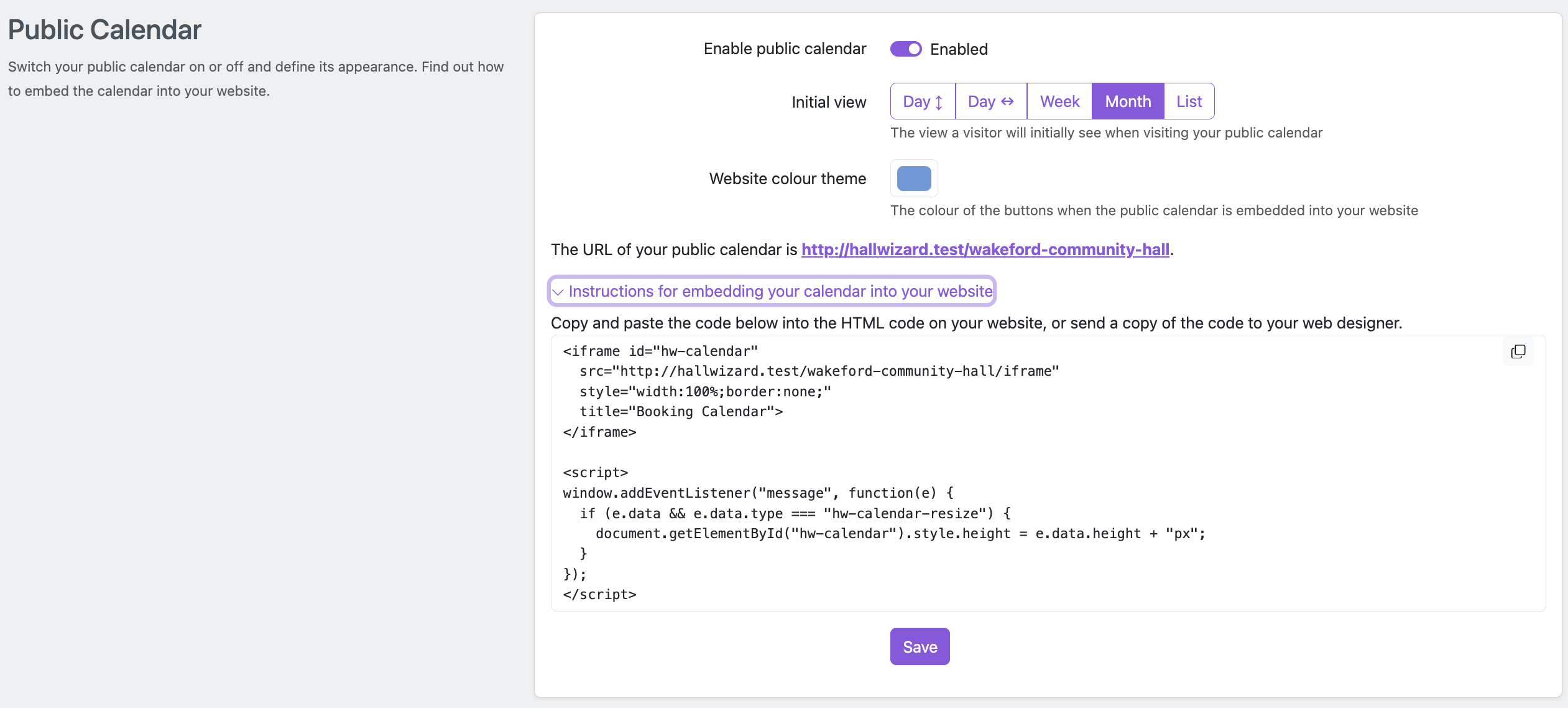
Toggle Enable Public Calendar to on
Choose the initial view visitors will see (e.g. Week, Month)
Select a colour theme to match your website or branding
Click Save
Your public calendar will be available at a URL like https://app.myhallwizard.com/your-venue-slug. This URL is shown on the Calendar Settings page.
To change the URL, click the Settings icon, then click Venue Details and update the Calendar URL field.
Embedding Into Your Website
On the Calendar Settings page, click Instructions for embedding your calendar into your website to reveal the HTML code you need. Copy this code into your web page.
Wix
In Wix, go to Add > Embed > Embed Code and add an HTML Element. Paste the embedding code into the element.
WordPress and other CMS
Paste the embedding code into an HTML block or custom HTML widget in your page editor.
Joomla
In Joomla, create a Custom HTML module and paste the embedding code. The iframe URL format is:
https://app.myhallwizard.com/your-venue-slug/iframeSharePoint
SharePoint needs two small adjustments before it will show the calendar.
Allow our calendar to be embedded. A site administrator needs to add MyHallWizard to SharePoint's list of trusted sites. Go to Site Settings > HTML Field Security, and under "Allow iframes from these domains" add:
app.myhallwizard.comAdd the calendar to your page. Edit your page, add an Embed web part where you want the calendar to appear, and paste in the embedding code.
SharePoint does not run the auto-resize script that comes with the standard embed code, so the calendar may appear with no height or a scrollbar. To fix this, paste this simplified version instead, which uses a fixed height (adjust the 1200px value to suit your page):
<iframe
  src="https://app.myhallwizard.com/your-venue-slug/iframe"
  style="width:100%;height:1200px;border:none;"
  title="Booking Calendar">
</iframe>
Set the height tall enough to fit the Month view, which is the tallest, so none of the calendar is cut off.
Hand-coded Websites
Paste the embedding code directly into your HTML page where you want the calendar to appear.