Managing Booking Enquiries
In this article
Booking Enquiries allow new or existing customers to request a room booking by completing an online form. When a booking enquiry is received, your venue's booking administrators review it and either create a booking or decline the request. It only becomes an actual booking if it is confirmed.
Booking enquiries must be enabled before they can be used — see Enabling Booking Enquiries.
What the customer sees
The customer accesses the booking enquiry form either from your public calendar (via the Booking Enquiry button) or via links on your website.
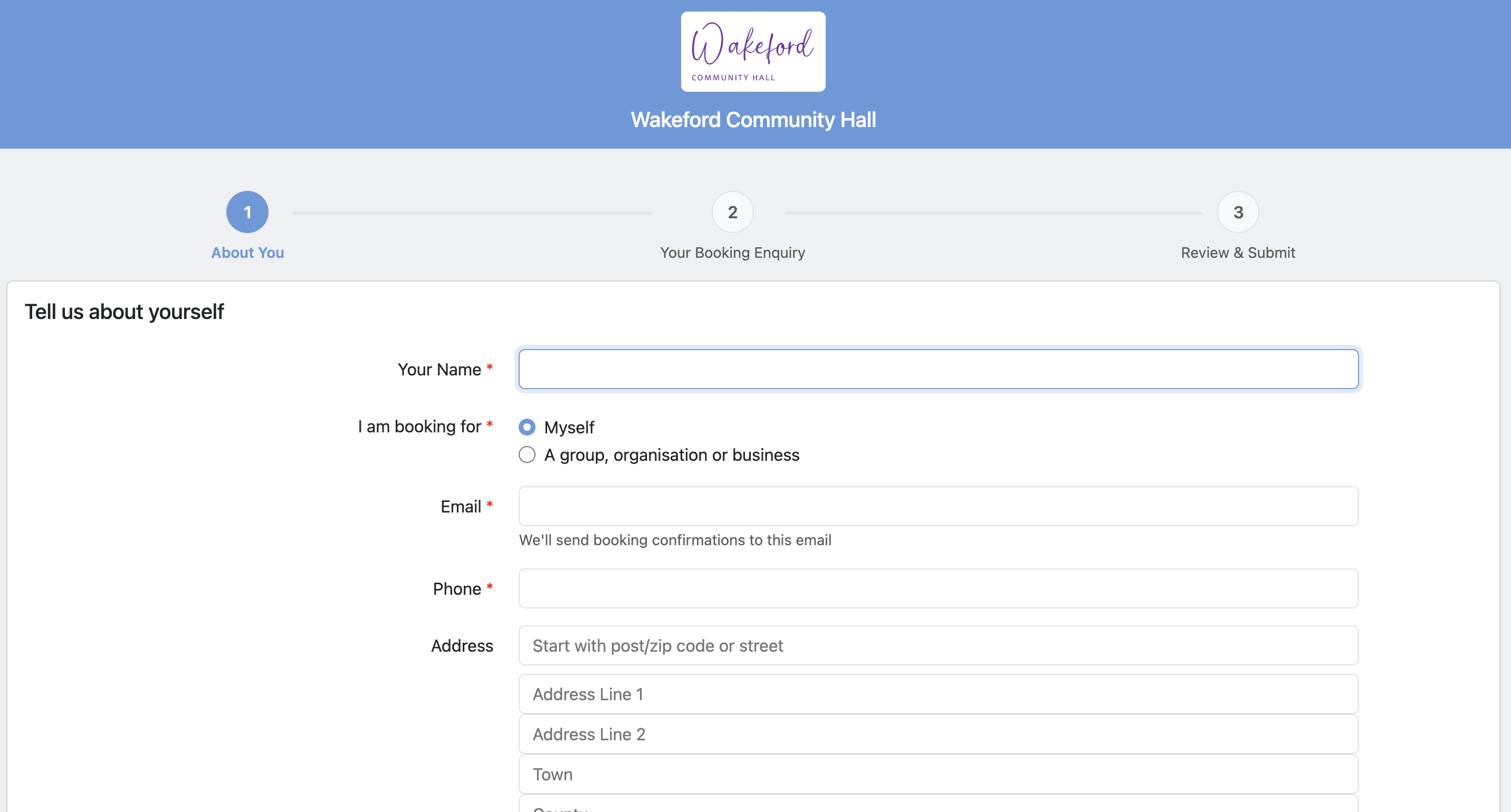
Step 1: About You
The customer enters their contact information:
Your Name — their full name
I am booking for — they choose either "Myself" or "A group, organisation or business"
Group/Organisation Name — appears only if they select the group option
Email — with guidance: "We'll send booking confirmations to this email"
Phone
Address — may be mandatory or optional depending on your settings
The customer can also choose to save their details on their device, so they don't need to re-enter them next time.
Step 2: Your Booking Enquiry
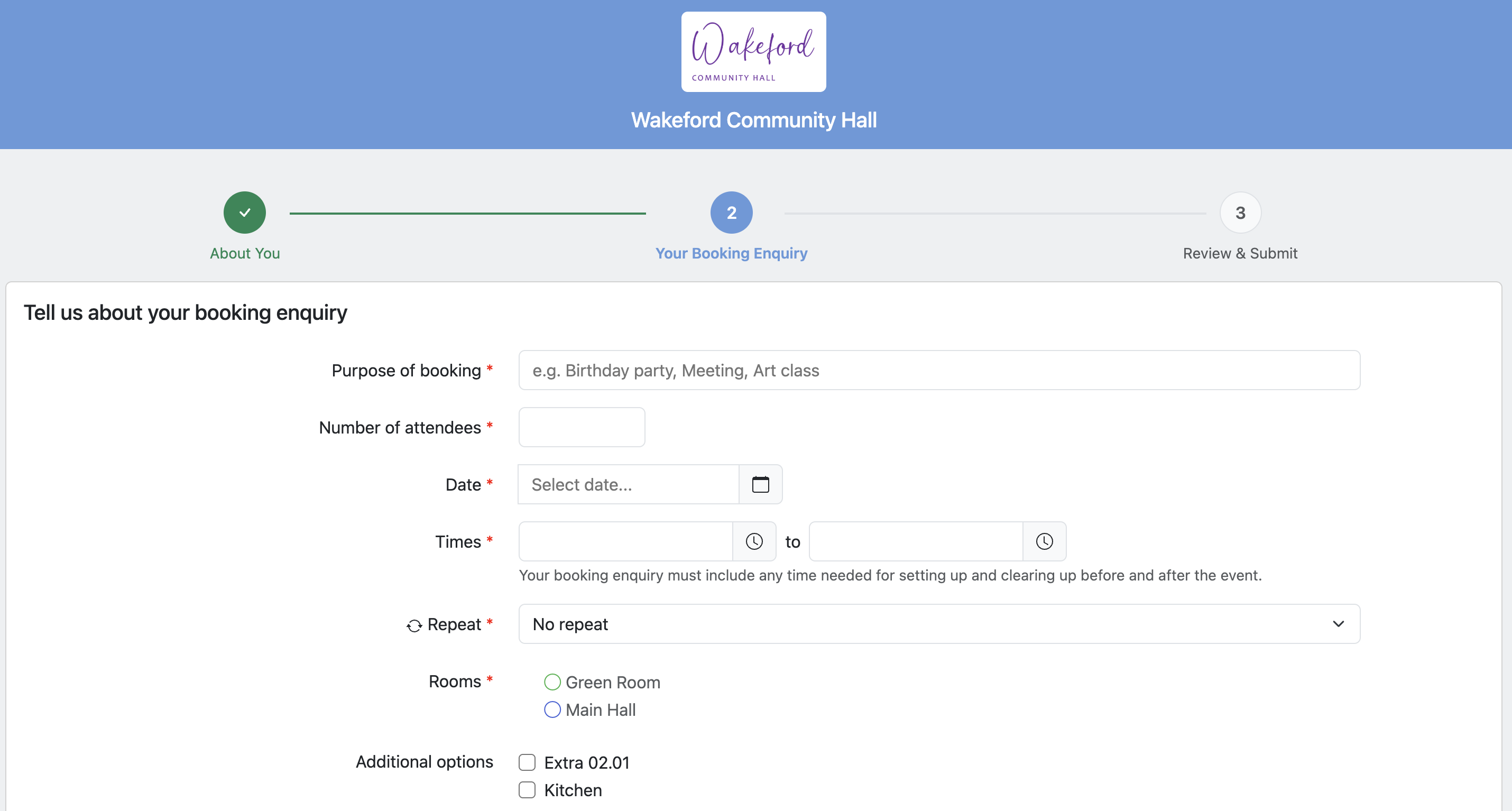
The customer enters their booking requirements:
Purpose of booking — e.g. "Birthday party", "Meeting"
Number of attendees
Date — limited to how far in advance you allow bookings (configurable in your settings)
Start and End times - if your closing time is after midnight or your are open 24 hours a day, they will also see an End Date field.
Repeat booking — if needed, with options for Daily, Weekdays, Weekly, Monthly or Annually
Rooms — checkboxes showing your rooms with their coloured indicators. Room availability is checked automatically.
Extras — if your venue has extras configured
Calendar visibility — whether the booking purpose is visible on the public calendar
If the customer previously submitted an enquiry, they can copy the details from their previous submission.
Step 3: Review & Submit
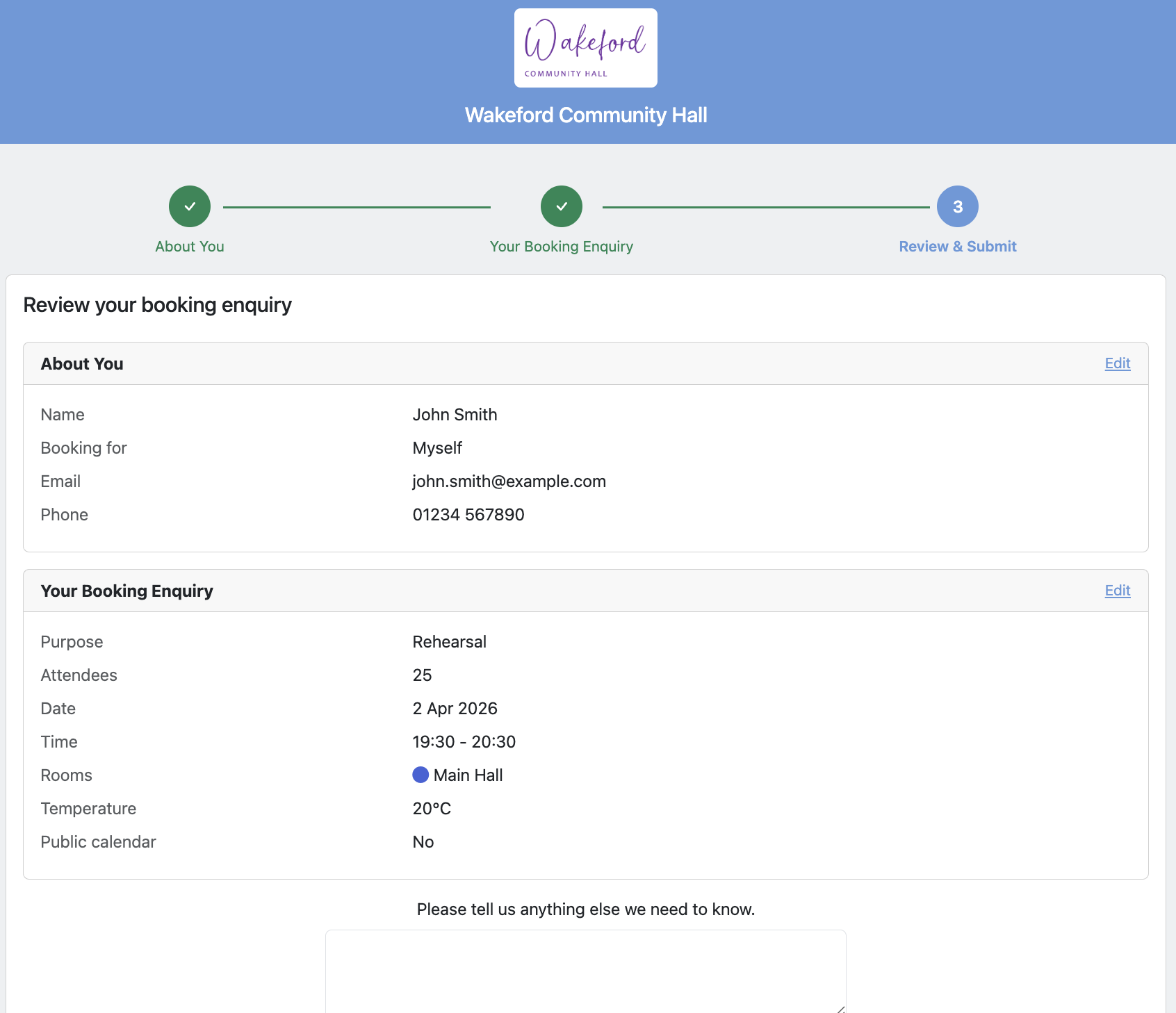
The customer reviews their information in summary cards, with Edit buttons to jump back to any section. They also:
Enter any additional details or special requirements
Accept your terms and conditions and privacy policy
Complete a reCAPTCHA check (to prevent spam)
Once submitted, a thank you screen is displayed and a confirmation email is sent to the customer. They have the option to make another booking enquiry, with their contact details pre-filled.
Reviewing booking enquiries
Notifications
When a customer submits a booking enquiry, an email notification is sent to all booking administrators for your venue (all users except "read only" users). The email summarises the key information and includes a button to review the enquiry directly.
The booking enquiry also appears on your calendar in white (instead of the usual room colour), so you can easily spot it.
Booking Enquiries list
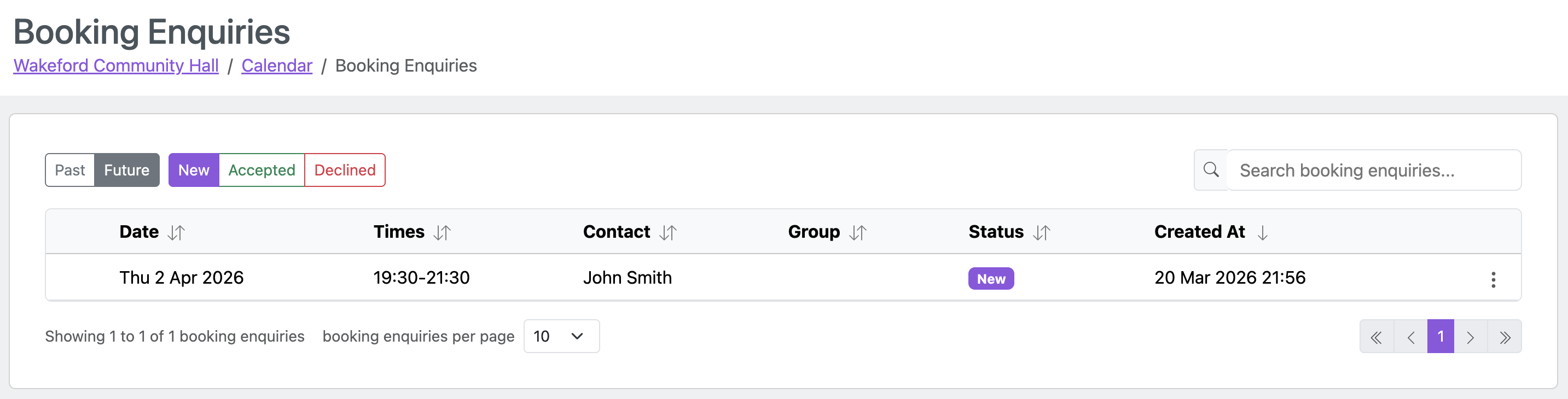
Click Booking Enquiries in the calendar sidebar to see a list of all booking enquiries. By default, only New enquiries for Future dates are shown. You can use the filter buttons to also view Past, Accepted, or Declined enquiries.
The list shows the date, times, contact name, group name, status, and when the enquiry was received. Click on any row to review it.
Reviewing a booking enquiry
You can access the review page by:
Clicking the button in the notification email
Clicking on the booking enquiry in the calendar
Clicking on a row in the Booking Enquiries list
Enquiry Summary
At the top of the review page, a summary card shows the customer's information in three columns:
Contact Details — name, group/organisation, email, phone, address
Booking Details — purpose, date, times, attendees, repeat pattern (if any), privacy setting
Requested Rooms & Extras — the rooms and extras requested
If the customer included any additional information or special requirements, this is shown prominently in an alert at the top of the page.

Customer Selection
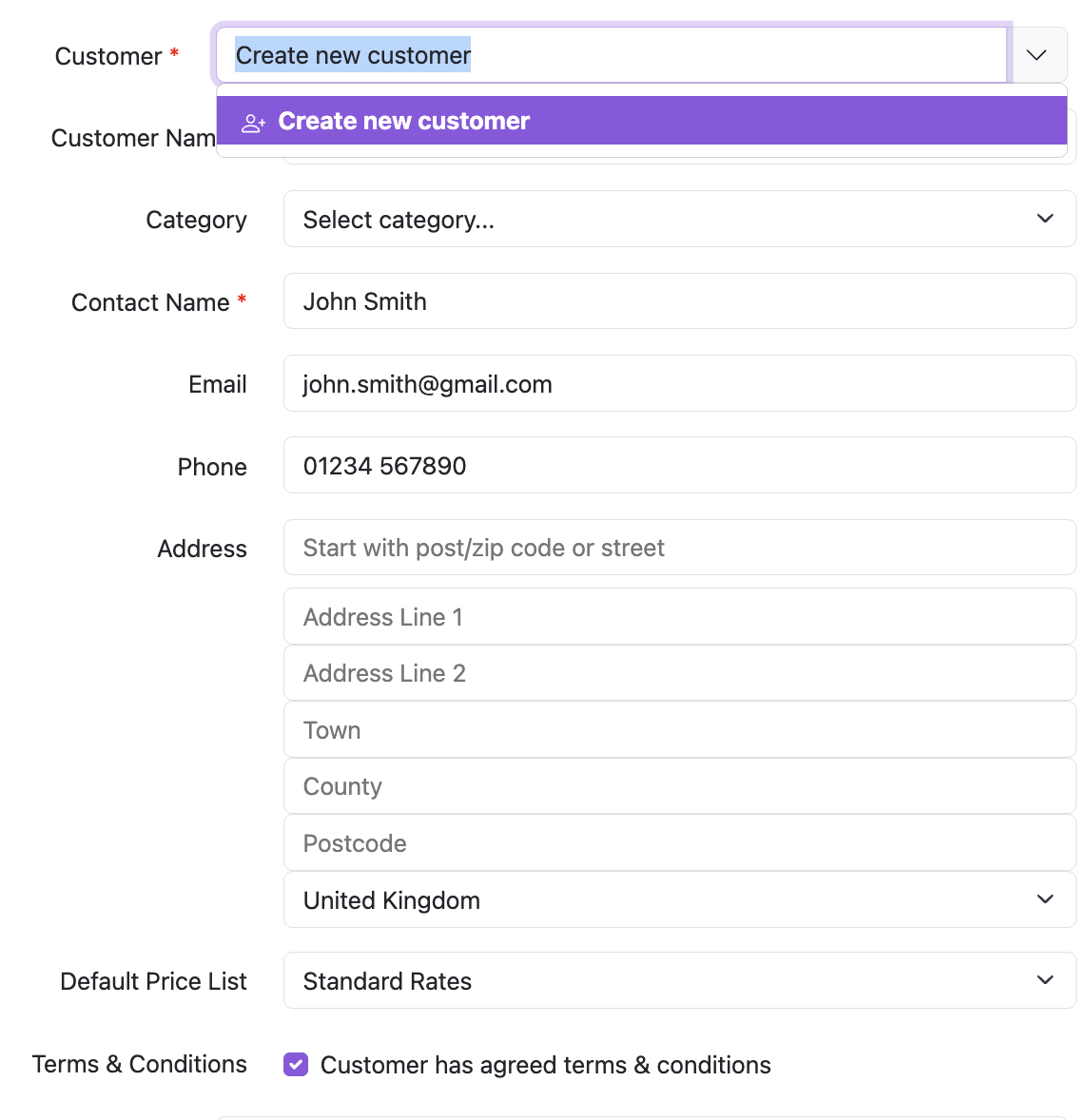
Below the summary, you choose which customer record to use. MyHallWizard attempts to match the enquiry with your existing customers.
If a match is found, the customer is pre-selected for you
You can change the selection using the dropdown
If the customer is new, choose Create new customer — their details from the enquiry form will be pre-filled
Booking Form
The rest of the page is a booking form, pre-filled with the information from the enquiry. This is the same form used for creating any booking, so you can adjust:
Booking Name — auto-generated as "Customer Name - Purpose", but you can change it
Status — Provisional (default) or Confirmed
Date and times
Rooms — the requested rooms are pre-selected if available
Extras
Price — calculated from the customer's price list. You can override this as usual
Administration Notes — pre-filled with the customer's additional information
By default, the booking is created as Provisional. This gives the customer the opportunity to confirm or cancel once they see the price. However, you can change it to Confirmed if you prefer.
Creating the booking
Once you're happy with the details, you have two options:
Create Booking — creates the booking and takes you to the booking detail page
Create Booking & Email — creates the booking and then opens an email composer so you can send the customer a confirmation (or provisional booking) email

Declining a booking enquiry
If you do not wish to accept the booking enquiry, click the red Decline Request button. A confirmation dialog will appear with two options:
Decline — declines the enquiry without sending an email
Decline & Email — declines the enquiry and opens an email composer so you can explain the reason to the customer
Handling spam
From time to time you may receive spam or malicious booking enquiries. If this happens, simply click Decline Request and choose Decline