Managing Repeat Bookings
In this article
Repeat bookings allow you to create a series of bookings that follow a regular pattern — for example, a weekly yoga class or a monthly committee meeting. MyHallWizard manages the entire series as a group, while still allowing you to make changes to individual bookings when needed.
Creating a Repeat Booking
Start by entering the booking details as you would for any booking: Customer, Booking Name, Date/Time, Rooms, and Price.
Then set up the repeat pattern:
In the Repeat field, select the pattern: Daily, Weekly, Monthly, or Annually.
Adjust the frequency if needed — for example, "every 2 weeks" or "every 3 months".
For Monthly bookings, choose whether to repeat on a specific date each month (e.g. the 15th) or on a specific day of the week (e.g. the second Monday, or the last Thursday).
Enter the final booking date in the until field.
Tip: For bookings that repeat twice a week — for example on Tuesday and Thursday each week — choose Weekly then select both days of the week.

Term-time only, School holidays, Public holidays
MyHallWizard can make a repeat booking for school term time only, for the school holidays only, or with public holidays left out. You enter your local school term dates and public holidays once, and every repeat booking that uses them books the right days.
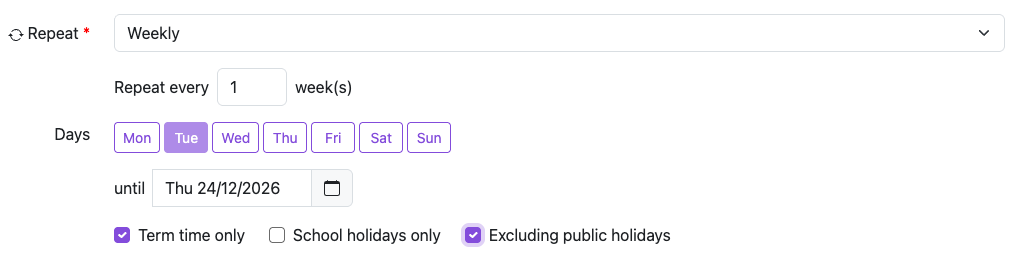
This feature is disabled by default, and needs to be switched on if you want to use it. This is done in Settings > School Terms, Holidays & Notes. See School terms, public holidays and calendar notes for instructions.
Creation Preview
As you fill in the form, MyHallWizard shows a live preview of what will happen when you save:
Will be Created (green) — the number of bookings that will be created successfully. Expand to see all the dates.
Will Clash (orange) — the number of bookings that cannot be created because the room is already booked at that time. Expand to see which dates and rooms conflict.
This preview updates automatically as you change the dates, times, rooms, or repeat pattern, so you can see the impact of your choices before saving.
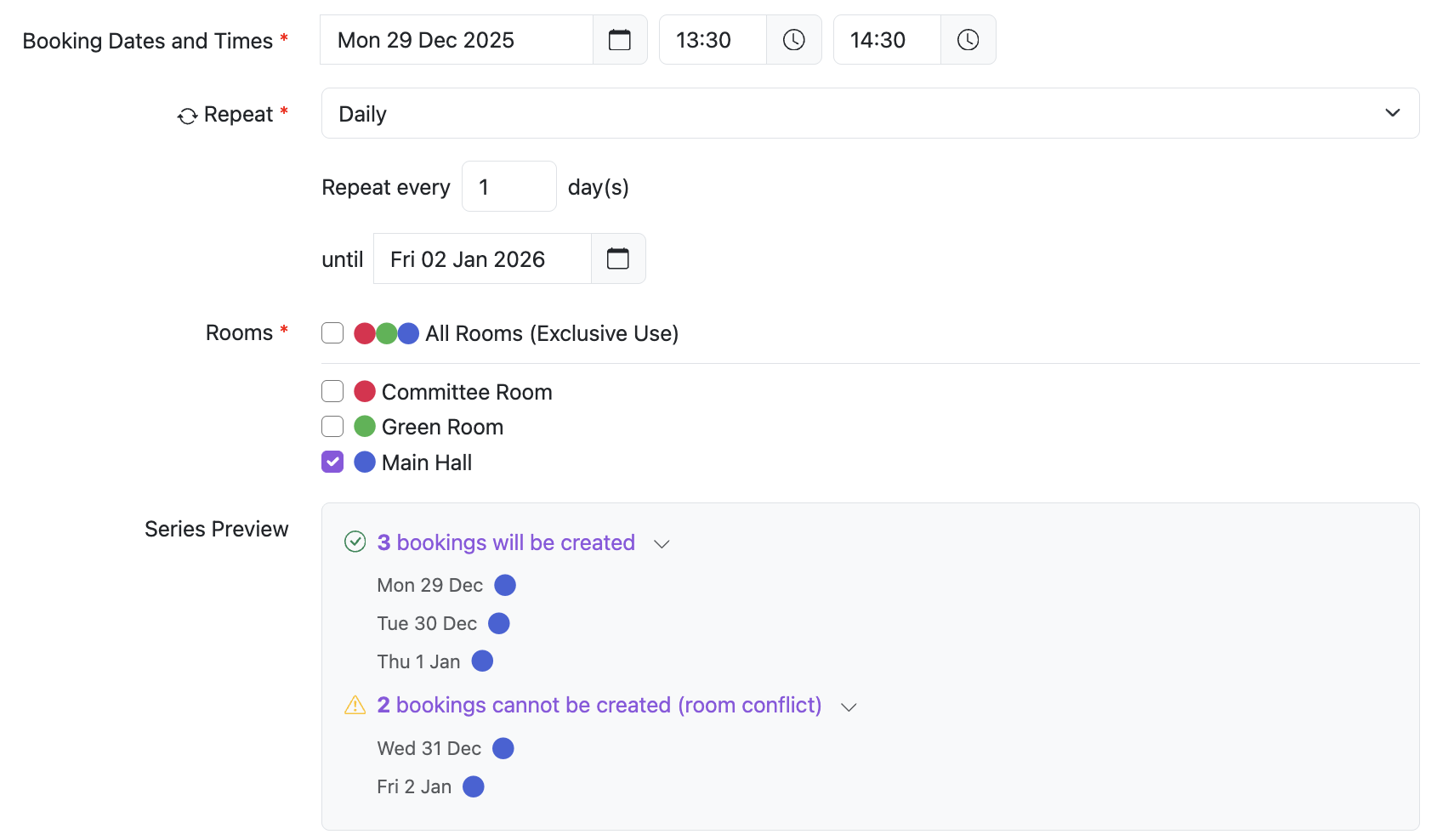
When you save, all the non-clashing bookings are created and added to the calendar. Clashing bookings are shown as missing from the series — you can create them individually later, perhaps in a different room or at a different time.
Pricing for Repeat Bookings
If your prices change during the life of a repeat series (for example, if new prices take effect partway through), MyHallWizard calculates the correct price for each booking based on its date. The price section shows a price pattern — for example, "£50 initially, £60 from 1 Jan 2025".
Viewing Repeat Booking Series
The Repeat Bookings Table
There are several ways to view your repeat booking series:
From the calendar sidebar — click the Repeat Bookings button in the sidebar to see a table of all your repeat booking series.
From a customer page — open a customer record and click the Repeat Bookings tab to see all series for that customer.
From the calendar — click on any booking that's part of a series, then choose The entire series when prompted.
The Repeat Bookings table shows each series with its date pattern, times, booking name, customer, and rooms. You can filter to show Future series, Past series, or both. Click on any row to open the series.

Series Overview Page
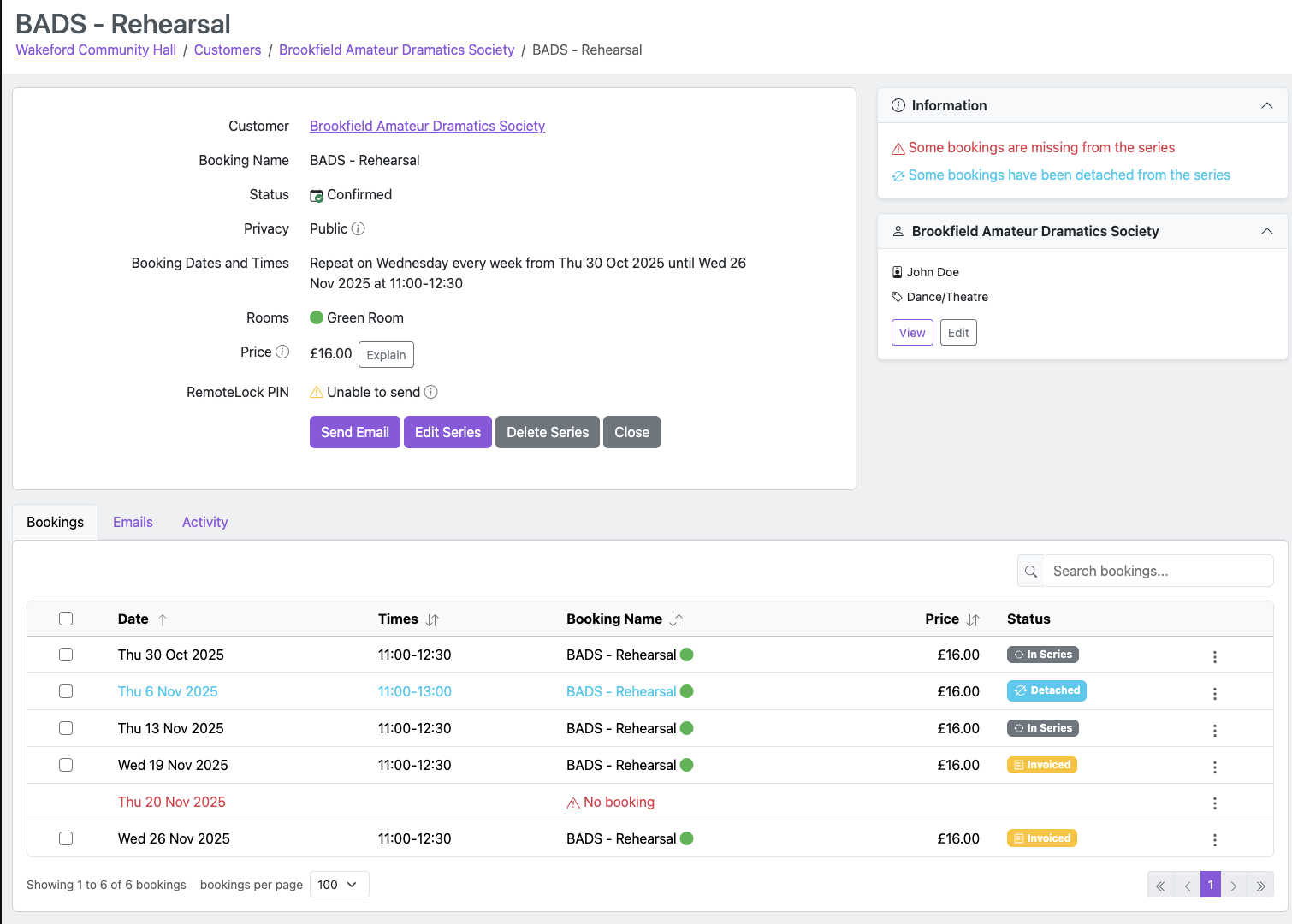
The series overview page shows:
The series details (name, pattern, times, rooms)
A list of all individual bookings in the series, with their status and any missing dates
Tabs for Emails sent about the series and Activity history
Booking Statuses
Each booking in a series has a status shown as a badge:
In Series — the booking matches the series settings and will be updated when the series is changed.
Detached (blue icon) — the booking has been modified individually or detached due to a conflict. It is no longer linked to the series, and changes to the series will not affect it.
Invoiced (orange receipt icon) — the booking has been invoiced. Its price is protected from series changes.
Missing Bookings
If any bookings could not be created due to room clashes, they appear in the list as missing (shown in red). You can create a missing booking by clicking on it — this opens the booking form pre-filled with the series details, and you can adjust the room or times as needed.
Warnings
If the series has missing or detached bookings, a warning appears in the Information panel in the sidebar to alert you.
Editing a Repeat Booking
Changing a Single Booking
Click the booking on the calendar and choose Just this one. Edit the details and save. Your changes apply only to that booking, which becomes Detached from the series.
Once a booking is detached, future series changes will not affect it. To bring it back in line with the series, you can use the Reconnect button (see below).
Editing the Series
Click any booking in the series on the calendar, choose The entire series, then click Edit Series. You can also open the series from the Repeat Bookings table (see above).
The edit form shows the same fields as the booking form. The repeat pattern is shown as read-only text (e.g. "Every Monday, until 31 Dec 2024") — you can change the until date but not the repeat pattern itself.
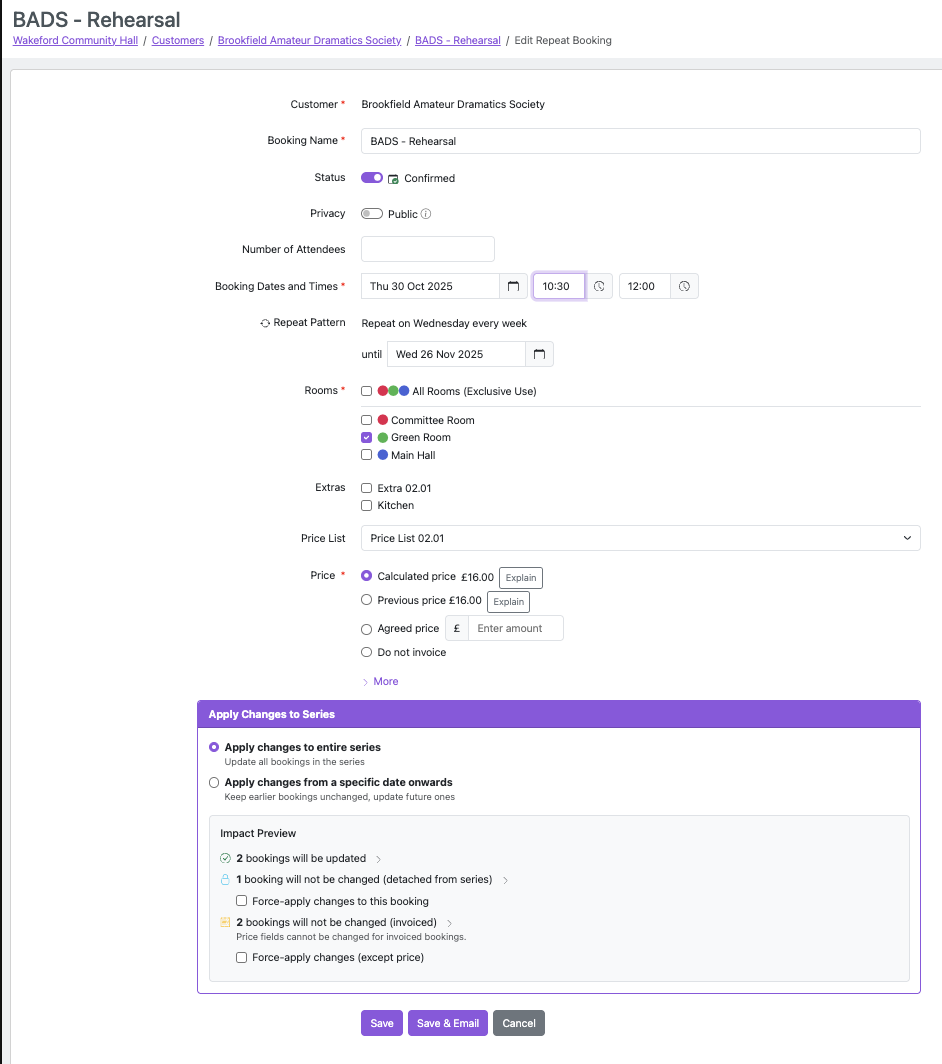
Impact Preview
As you make changes, MyHallWizard shows a live impact preview showing exactly what will happen when you save. This lets you see the consequences of your changes before committing them.
The preview can show any combination of the following categories:
Category | Icon | Meaning |
|---|---|---|
Will be Updated | Green tick | These bookings will receive your changes |
Will be Created | Green plus | New bookings if you've extended the date range |
Will be Created with Conflicts | Orange warning | New bookings that can't be created due to room clashes |
Will be Deleted | Red bin | Bookings outside the new date range that will be removed |
Before Cutoff | Grey | Bookings before your chosen "from date" — these will be detached from the series |
Detached from Series | Blue lock | Bookings that were previously detached — these are protected by default |
Invoiced | Orange receipt | Bookings that have been invoiced — these are protected by default |
Will be Detached (room conflict) | Orange warning | Existing bookings that would now clash with the room changes — they will be detached |
Each category shows a count and can be expanded to see the individual dates and rooms.
Changing Bookings from a Specific Date
If a customer wants to change their booking pattern from a certain date — for example, extending their end time from October onwards — you have two approaches:
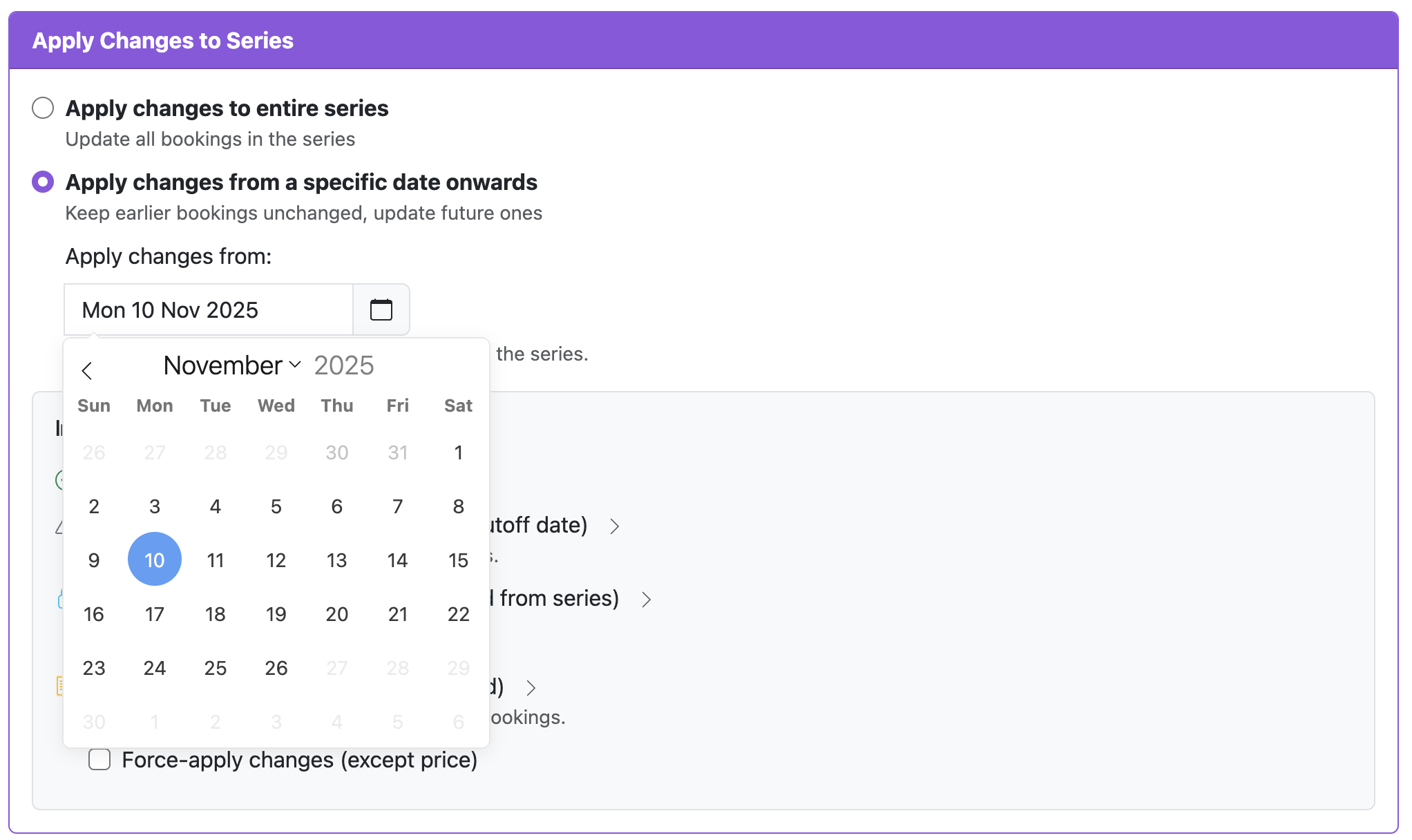
Option 1: Use "Apply from date"
Select Apply changes from a specific date onwards then select the date from which the changes should apply.
Check the impact preview and save
Earlier bookings will be detached from the series but will keep their original times.
Option 2: Split into two series
Edit the existing series and change the until date to the last booking with the original pattern
Create a new repeat booking series with the updated details, starting from the date the change takes effect
This approach gives you two separate series. We recommend this if the changes are substantial or you have a long booking series, as it will make your bookings easier to manage.
Protected Bookings
Bookings that have been detached or invoiced are protected by default — they won't be changed when you update the series. This prevents you from accidentally overwriting custom changes or altering invoiced amounts.
If you do want to update protected bookings, you can tick the checkboxes in the impact preview:
Force-apply changes to these bookings — for detached bookings
Force-apply changes (except price) — for invoiced bookings.
After Saving
After saving changes to a series, the series page shows a summary of what happened:
How many bookings were updated
How many were unchanged (before cutoff)
How many were detached due to conflicts or cutoff
How many detached bookings were skipped
How many invoiced bookings were skipped
Always check this summary, and review any bookings with Detached status to make sure everything is as expected.
Deleting a Repeat Booking Series
From the series page, click Delete Series. A dialog lets you choose:
Delete from a specific date onwards — choose a cutoff date. Bookings before that date are kept.
Delete entire series — removes all bookings in the series.
The same impact preview appears, showing which bookings will be deleted and which are protected (detached or invoiced). Use the force-apply checkboxes if you need to include protected bookings in the deletion.
Reconnecting a Detached Booking
If a booking has been detached from its series, you can reconnect it:
Open the individual booking (click it on the calendar and choose Just this one)
In the Information panel in the sidebar, you'll see "This booking has been detached from the series" with a Reconnect button
Click Reconnect and confirm
MyHallWizard will check that the rooms are available at the series times. If they are, the booking is updated to match the current series settings and its status returns to In Series. If the rooms are not available, you'll see an error message.
Note: Invoiced bookings cannot be reconnected to a series.