Creating and Managing Bookings
In this article
This guide covers how to create, view, edit and manage bookings in MyHallWizard.
Creating a Booking
There are two ways to create a new booking:
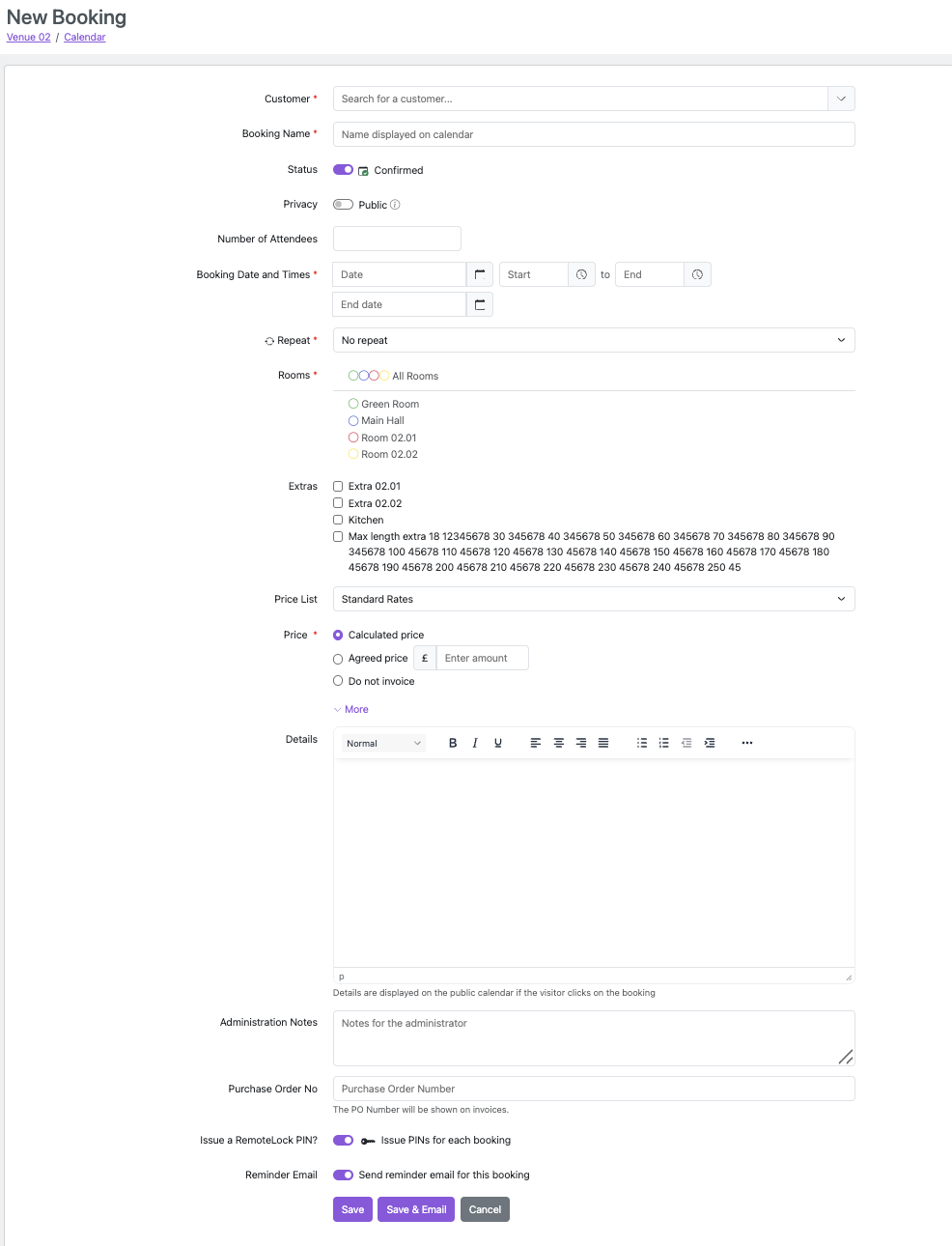
From the calendar — click on a date and time slot on the calendar. The booking form will open with the date, time and room pre-filled.
Using the New Booking button — click New Booking in the calendar toolbar to open a blank booking form.
Booking Form Fields
Core fields:
Field | Required? | Description |
|---|---|---|
Customer | No | Select an existing customer or create a new one inline. The customer's default price list and privacy settings will be applied automatically. |
Booking Name | Yes | The name shown on the calendar (e.g. "Art Group", "Birthday Party"). |
Status | Yes | Confirmed or Provisional. Provisional bookings can be confirmed later by you or by the customer via email. |
Privacy | Yes | Public (visible on the public calendar) or Private (hidden). Personal customers default to Private. |
Number of Attendees | No | Used in reports and for capacity warnings. |
Booking Date, Start Time, End Time, End Date | Yes | The date and times of the booking. For most bookings, End Date will be the same as Start Date, but for bookings through to midnight or beyond you would want to set it to the following day. |
Rooms | Yes | Select one or more rooms. Room availability is checked automatically. |
Extras | No | Select any extras your venue offers (e.g. "Use of kitchen", "Projector"). |
Price | Yes | See Price Options below. |
"More" section (click More to expand):
These are not core fields, but can be used for adding further information on the booking. To keep the screen tidy for you, we sometimes hide these fields - if you can't see them, click > More at the bottom of the customer record to show them.
Field | Description |
|---|---|
Details | Text shown when visitors click the booking on the public calendar. Hidden for private bookings. |
Administration Notes | Internal notes for venue staff — not visible to customers. |
Purchase Order No | A customer's PO number, displayed on invoices. |
Reminder Emails | Whether to send Booking Reminder Emails to this customer. Only shown if Booking Reminder Emails are configured. See Booking Reminder Emails. |
Issue RemoteLock PIN? | Toggle for RemoteLock integration (only shown if RemoteLock is set up). |
Room Temperature | Preferred temperature for HeatingSave integration (only shown if HeatingSave is set up). |
Custom fields | Any custom fields you have created are also displayed at the bottom of the customer record. |
Price Options
When creating or editing a booking, you can choose how the price is calculated:
Calculated price (default) — automatically calculated based on the customer's price list, rooms, times and extras. Click Explain to see the full breakdown.
Agreed price — enter a specific amount that you've agreed with the customer.
Do not invoice — no charge for this booking. The booking won't appear in invoicing.
Previous price (edit mode only) — keeps the previously calculated price, useful if prices have changed since the booking was created.
You can also change the Price List used for the calculation if the customer has access to multiple price lists.
Repeat Bookings
To create a series of bookings that repeat on a regular pattern, use the Repeat field. See Managing Repeat Bookings for full details.
Viewing a Booking
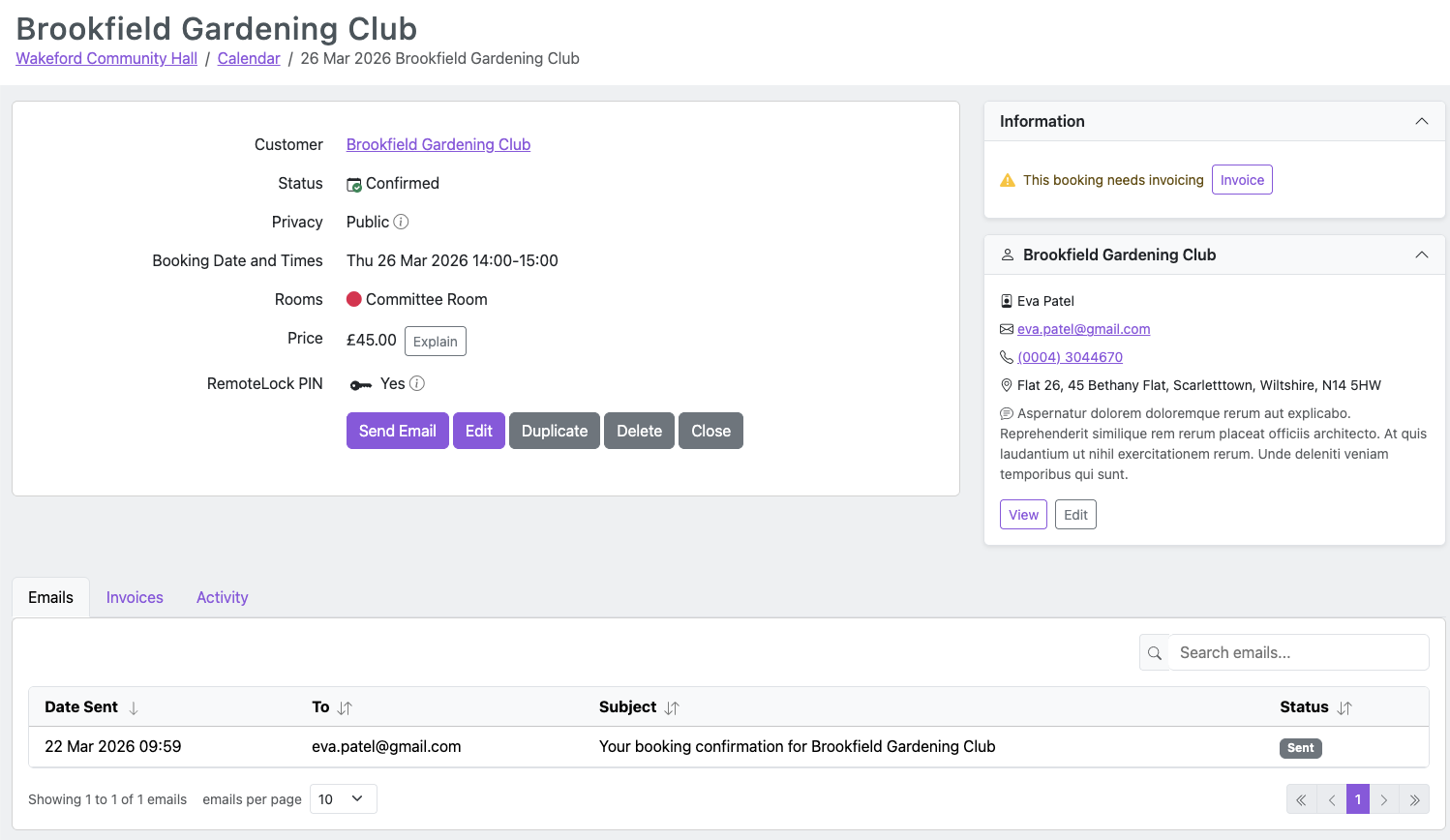
Click on any booking in the calendar to view its details. If the booking is part of a repeat series, you'll be asked whether to open Just this one or The entire series.
The booking detail page shows:
All booking details (customer, date/time, rooms, price, etc.)
Information panel in the sidebar — alerts for invoicing status, payment status, and other actions needed
Customer panel — the linked customer's contact details
Tabs at the bottom:
Emails — all emails sent about this booking
Invoices — invoices created from this booking, with a Create Invoice button
Activity — audit history of all changes
Editing a Booking
Click a booking on the calendar, then click Edit on the booking detail page. Make your changes and click Save, or Save & Email to save and send the customer an email about the changes.
Duplicating a Booking
To create a new booking based on an existing one, click Duplicate on the booking detail page. This opens the booking form with all fields pre-filled from the original booking. You must select a new date — all other fields can be kept or changed as needed.
Deleting a Booking
Click Delete on the booking detail page. If a cancellation email template has been configured, you'll also have the option to Delete & Send Email to notify the customer.
Note: Deleting a booking that has been invoiced does not delete the invoice. You may need to handle the invoice separately (e.g. issue a credit note).
Confirming a Provisional Booking
If a booking has Provisional status, it can be confirmed in two ways:
By you — open the booking and change the Status to Confirmed, then save.
By the customer — if you included a
[ConfirmButton]or[ConfirmURL]in your Provisional Booking email template, the customer can confirm directly from their email.
Sending Emails
Click Send Email on the booking detail page to compose and send an email to the customer about the booking. The email uses your configured email templates and is pre-filled with the booking details.