Set up Invoices and Payments
In this article
Before using invoicing or payments for the first time, you need to configure your invoice template and payment methods.
Watch this video or read the instructions below to find out how.
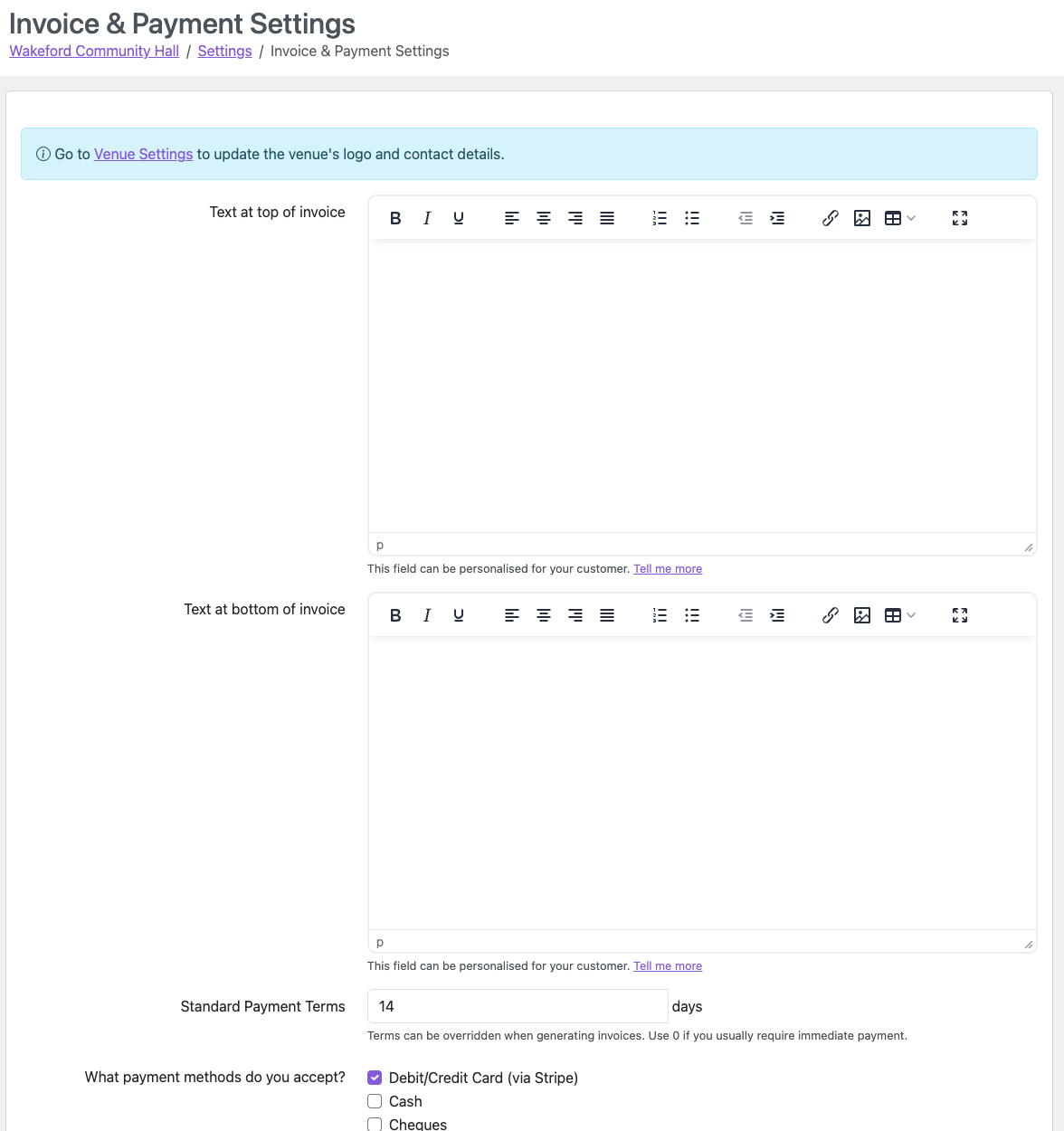
Click the Settings icon (gear/cog) in the navigation bar, then click Invoice and Payment Settings.
After making your changes, you can click Preview Invoice to see how your invoice will look, then click Save Changes.
Venue Logo and Contact Details
Your invoice displays your venue's logo, name, address, phone number and email address. These come from your Venue Settings.
To update any of these details, go to Settings and click Venue Details. You can upload or change your logo there, along with your venue's contact information.
The logo should be at least 150 pixels in height and formatted as JPG, PNG, BMP or GIF, not exceeding 512KB in file size.
Invoice Text
You can add custom text at the top and bottom of your invoices, such as a greeting, thank you message, or company registration details.
These text fields can be personalised for each customer using field codes. See Personalising your invoices for your customer for details.
Standard Payment Terms
Set the default number of days customers have to pay their invoices. Use 0 if you usually require immediate payment. This can be overridden when generating individual invoices.
Payment Methods
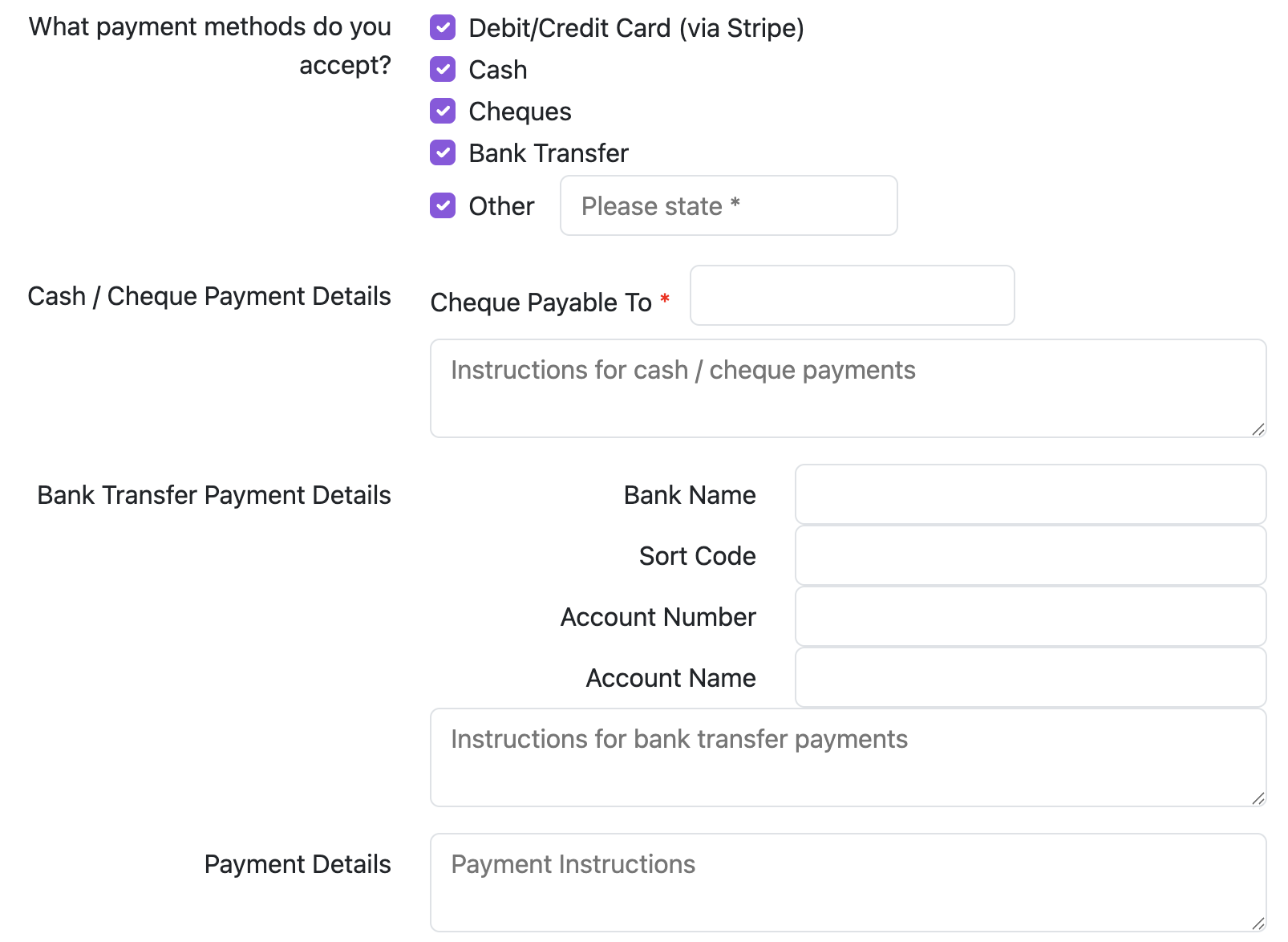
Select which payment methods you accept. The following options are available:
Debit/Credit Card (via Stripe) — allows customers to pay invoices online by card. See Card Payments using Stripe for setup instructions.
Cash
Cheques — you can specify the payee name and any payment instructions
Bank Transfer — you can enter your bank name, sort code, account number, account name, and any special instructions
Other — a custom payment method where you can specify a label and detailed payment instructions
The payment methods you enable will be displayed on your invoices.
Email Template
A pre-configured email template is provided for sending invoices. You can customise the email subject and body text in Email Templates (accessible from Settings).
The email template supports personalisation codes so each email is tailored to the customer. See Email Templates